Choose the size that matches your limit (for example Compress Image to 50 KB). Each tool lowers JPG quality first and reduces pixel size only when needed, then shows the new size before you download.
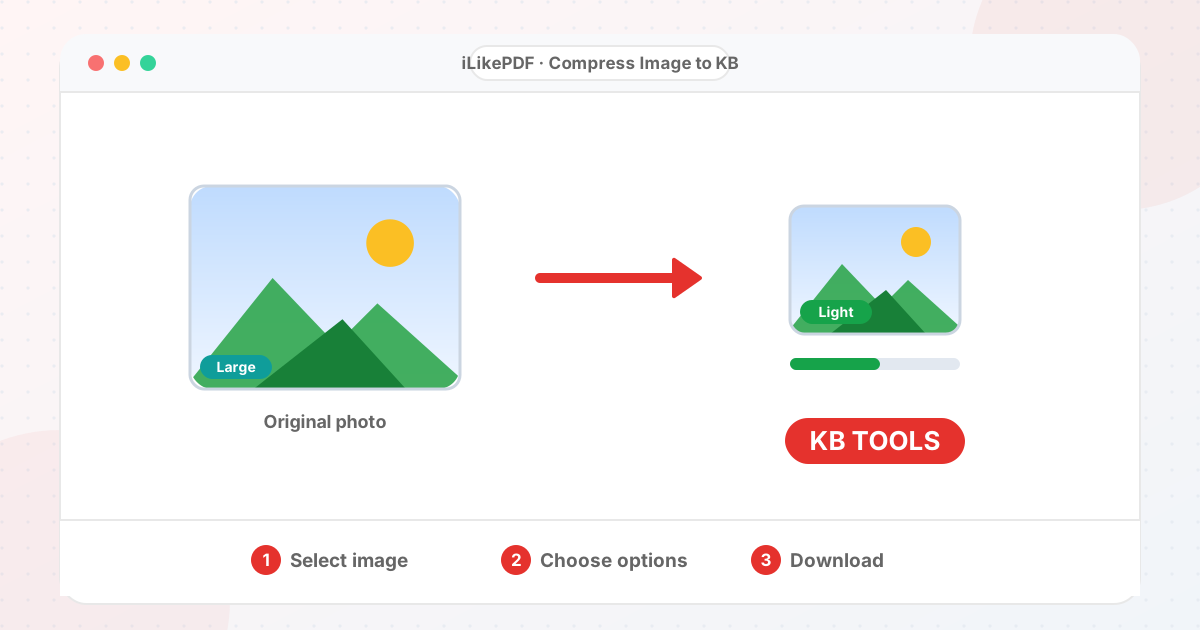
Online application forms, exam portals and bank uploads often reject pictures that are too large, and sometimes too small. The tools below cover the usual limits: 5 KB to 500 KB for photos and signatures, 1 MB and 2 MB for documents, ranges such as 20 KB to 50 KB, and general tools where you type your own size. If a form needs a minimum size, the increase-size tools pad the file without changing the picture.
A file gets smaller in two ways: lower JPG quality, or fewer pixels. The tools use quality first and shrink pixels only when quality alone cannot reach the target, so you keep as much detail as possible.
General tools (choose your own size)
Very small: 30 KB or less
Form sizes: 31 KB to 150 KB
Larger: 200 KB to 2 MB
Between two sizes (KB range)
Increase file size
How to Choose the Right Tool
- Use the page that matches your limit exactly, such as Compress Image to 20 KB for a 20 KB limit.
- If your form gives a range (for example 20 to 50 KB), use a between-sizes tool so the file is not too small.
- If the limit is in MB or you are unsure how KB and MB relate, use the KB to MB converter pages (1 MB = 1024 KB).
- If a form says the file is too small, use Increase Image Size in KB.
- For PDFs, use the compress-PDF-to-KB tools under Image to PDF.
Before You Upload Anything
- Keep your original file. Every tool saves a new copy.
- Compare the result with the size, format and dimensions your form or app states.
- Open the downloaded file once before you upload it.
- Aim slightly below the limit in case the form counts differently.
Other Image Tool Groups
Guides
Share This Page
If you found this tool useful, share it with friends and classmates:
FAQs – Compress Image to KB
1. Compress Image to KB kaise use karein?
Apni file select karein, settings check karein aur “Open tool” button dabayein. Result neeche dikhega; phir Download par tap karein.
2. Kya Compress Image to KB free hai?
Haan, iLikePDF ka Compress Image to KB tool bilkul free hai. Koi payment ya signup nahi chahiye.
3. Kya main mobile se Compress Image to KB use kar sakta hoon?
Haan, yeh tool mobile-friendly hai. Aap Android ya iPhone ke browser se bhi Compress Image to KB use kar sakte hain.
4. Kya meri file upload hoti hai?
Nahi. Yeh tool aapke browser me chalta hai; aapki file iLikePDF ke server par upload nahi hoti. (Kuch features ek helper library CDN se load karte hain, lekin aapki file unme nahi jaati.)
5. How do I compress an image to a specific KB size?
Open the tool for that size, choose your picture and press the button. The result and its size are shown before you download.
6. Will compressing to a small size ruin the picture?
Small targets reduce detail. Photos with plain backgrounds compress best. Start from the sharpest original you have.
7. Why does the result differ from my target by a few KB?
Browsers cannot hit an exact byte count. The tools aim just under your target and show the real size.
8. What if my form needs a minimum size?
Use Increase Image Size in KB or MB. It adds harmless padding so the file reaches the size, without changing the picture.
9. Which tool should I choose?
Start here: Use the page that matches your limit exactly, such as Compress Image to 20 KB for a 20 KB limit.
10. Do the tools reduce picture quality?
Only when your target needs it, and you can see the result before you download. Your original file is never changed.