About Compress PNG to 100 KB
Choose your image, keep the target at 100 KB and press the button.
iLikePDF's Compress PNG to 100 KB tool lets you reduce a photo to 100 KB or less in your browser – free and without any software. It is a good fit for photo upload on job, admission and exam portals, profile pictures for HR, school and bank systems and attachments in forms with a low limit. You may also know it as reduce image size to 100 kb, compress jpg to 100kb.
Everything happens in your browser: your files are not uploaded to our servers. It is private by design, quick to use and mobile-friendly.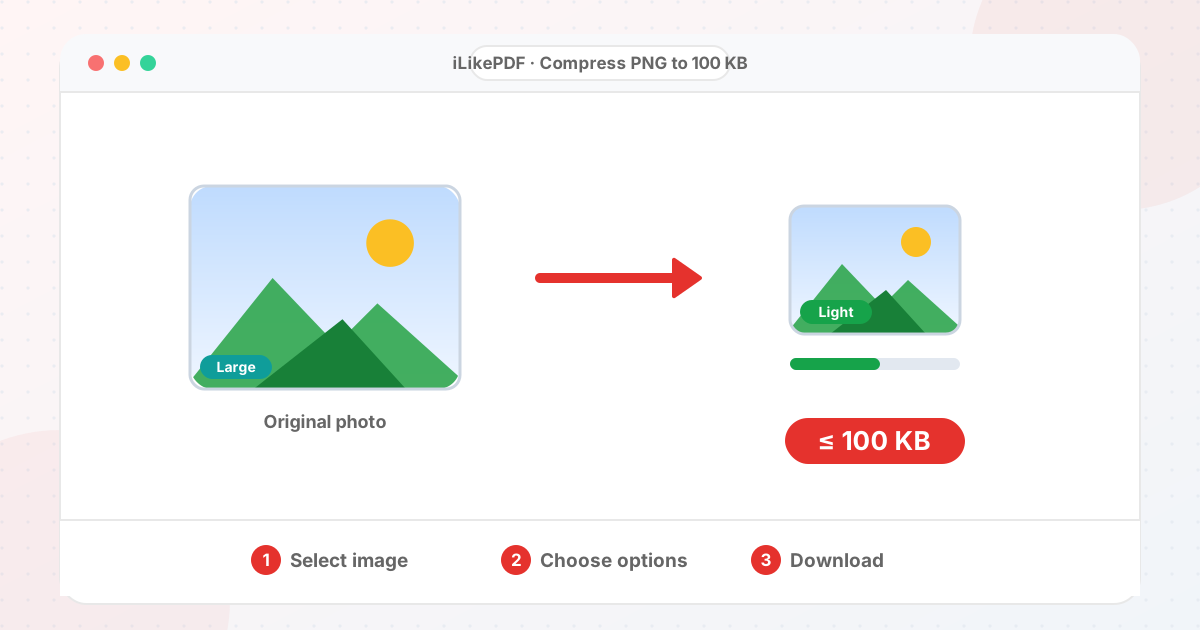
How to Use Compress PNG to 100 KB
- Select your photo with Choose File or drag it into the box.
- Check the target: it is set to 100 KB. You can change it if your form differs.
- Pick JPG for photos or PNG if you need transparency.
- Press Compress to 100 KB. The result and its size appear below.
- Press Download and upload the file. If the form still rejects it, lower the target a little.
Before & After
Before (Photo too large for the form)
- One photo, often 1–5 MB
- Form says “file too large”
- Slow to upload or email
After (JPG at or under 100 KB)
- File size at or below 100 KB
- Pixels reduced only if needed
- Ready to upload
Conceptual illustration, not a screenshot.
Supported Input and Output
| Input files | JPG, PNG, WebP, GIF, BMP, AVIF |
| Output format | PNG |
| Target size | up to 100 KB |
| How it gets there | Fewer pixels (PNG has no quality slider) |
| Upload | None: runs in your browser |
Compress PNG to 100 KB Features
- ✅ 100% free – no payment, no sign-up, no watermark.
- ✅ No software – reduce image size to 100 kb straight in your browser.
- ✅ Private by design – your file is processed on your device, not uploaded to our servers.
- ✅ Shows the real size – see the new file size before you download.
- ✅ Works on mobile and desktop – Android, iPhone, Windows and Mac.
Who Should Use Compress PNG to 100 KB?
- Students – Upload admission photos, ID scans and assignment pictures without hitting a size limit.
- Job Seekers – Fit your photo, signature and certificates into the limits of an application form.
- Professionals – Send lighter attachments to clients and colleagues.
- Small Businesses – Keep product pictures and invoices light for your website and WhatsApp.
- General Users – Free up space and share pictures faster on a slow connection.
Tips for Best Results
- Compress once from the original. Re-compressing an already compressed copy loses quality twice.
- If the result looks soft, lower the pixel size with a resize tool first and compress again.
- Check the number the tool shows against the size your form states, not the size your file manager rounds to.
Limits and Things to Know
- The result is normally just under 100 KB, not exactly equal to it.
- Very detailed photos need lower quality or fewer pixels to fit small targets.
- Transparent areas turn white when the picture is saved as a JPG.
Related Tools and Guides
Quick Summary
| Feature | Details |
|---|---|
| Tool name | Compress PNG to 100 KB |
| Cost | 100% free |
| Software required | No |
| File upload | No – processed in your browser |
| Supported devices | Mobile & desktop |
| Best for | Photo upload on job, admission and exam portals |
Share This Tool
If you found this tool useful, share it with friends and classmates:
Disclaimer
Compress PNG to 100 KB is for personal and educational use. Check your local laws and your organisation's rules before you process copyrighted or sensitive documents. Results depend on your file and browser, so always check the output before you use it.
FAQs – Compress PNG to 100 KB
1. Compress PNG to 100 KB kaise use karein?
Apni file select karein, settings check karein aur “Compress to 100 KB” button dabayein. Result neeche dikhega; phir Download par tap karein.
2. Kya Compress PNG to 100 KB free hai?
Haan, iLikePDF ka Compress PNG to 100 KB tool bilkul free hai. Koi payment ya signup nahi chahiye.
3. Kya main mobile se Compress PNG to 100 KB use kar sakta hoon?
Haan, yeh tool mobile-friendly hai. Aap Android ya iPhone ke browser se bhi Compress PNG to 100 KB use kar sakte hain.
4. Kya meri file upload hoti hai?
Nahi. Yeh tool aapke browser me chalta hai; aapki file iLikePDF ke server par upload nahi hoti. (Kuch features ek helper library CDN se load karte hain, lekin aapki file unme nahi jaati.)
5. How do I compress an image to 100 KB?
Choose the picture, leave the target at 100 KB and press the button. The tool finds the highest JPG quality that stays under 100 KB, reduces the pixel size only when quality alone is not enough, and shows the new size before you download.
6. Will the quality drop when I compress a photo to 100 KB?
Yes, some. A smaller file always stores less information. At 100 KB the picture will be small and softer than the original, which is normal for form uploads.
7. Why is my file smaller than 100 KB?
The tool aims for just under 100 KB. If the original was already close to that size, or has little detail, the saved file can be smaller.
8. Why does PNG need fewer pixels to get smaller?
A PNG is saved without quality loss, so there is no quality dial. The tool reduces the pixel size until the PNG fits, which can make the picture noticeably smaller. For photos, JPG is usually the better format.
9. Is the result exactly 100 KB?
It is at or just below 100 KB. Browsers cannot hit an exact byte count, but the size is shown so you can confirm it before you upload.
10. How can I compress image to 100 kb for form?
Use Compress PNG to 100 KB on this page: choose your file, check the settings and press the button. The result downloads to your device.