About Image to Text Converter (OCR)
Choose the picture, pick the language of the text and press the button.
iLikePDF's Image to Text Converter (OCR) tool lets you read the text in a image and copy it or download it as a text file – free and without any software. It is a good fit for typed notes, book pages and printed forms, turning screenshots and photos of documents into editable text and copying text from an image that cannot be selected. You may also know it as ocr online, extract text from image.
Everything happens in your browser: your files are not uploaded to our servers. It is private by design, quick to use and mobile-friendly.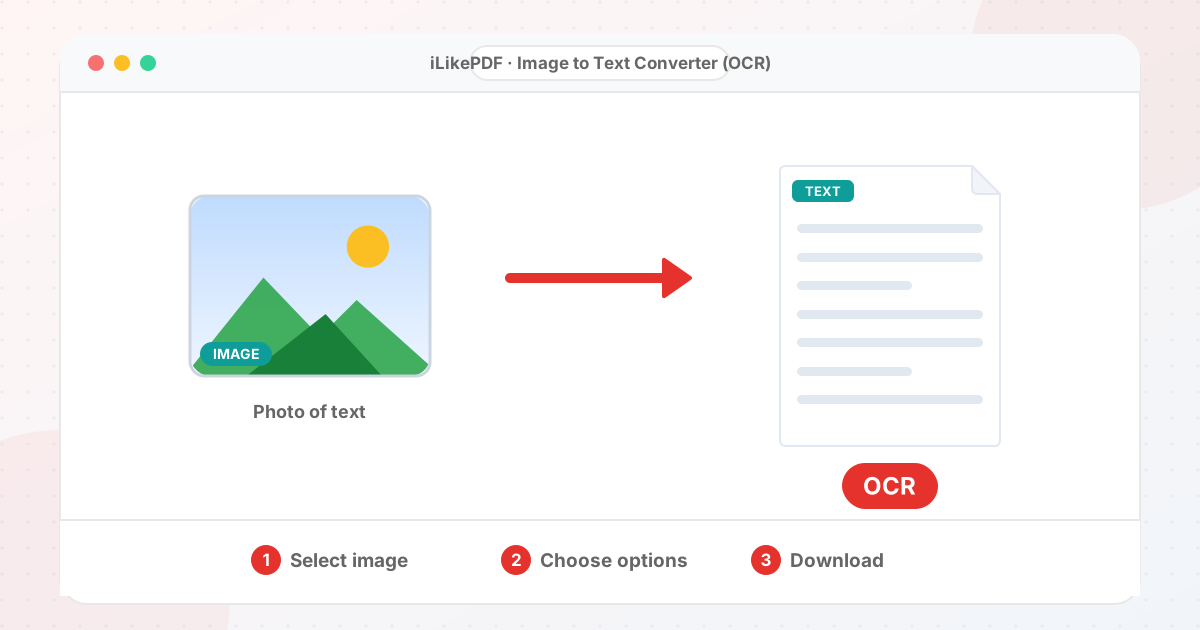
How to Use Image to Text Converter (OCR)
- Select a sharp picture of printed text.
- Choose the language (English, Hindi, Marathi, Tamil and more).
- Press the button and wait. The first time, the language data is downloaded.
- Correct any mistakes in the text box.
- Copy the text or download the text file.
Before & After
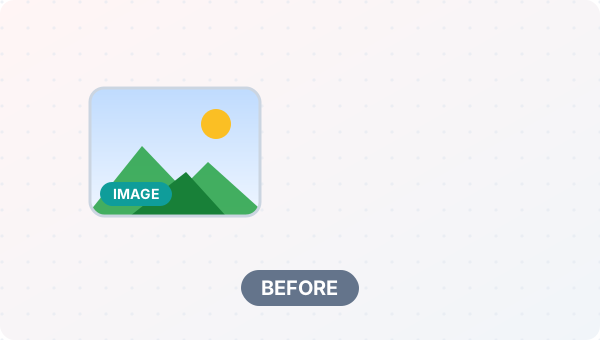
Before (Photo of printed text)
- Text is part of a picture
- Cannot be selected or edited
- Retyping takes time
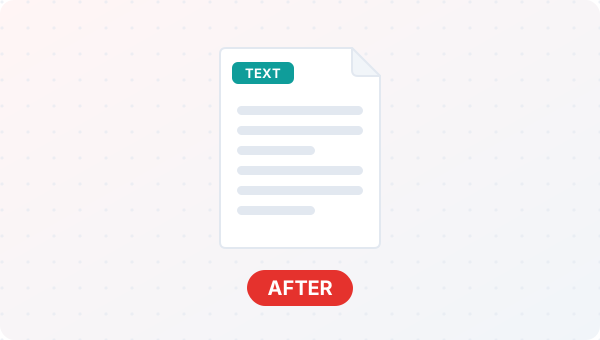
After (Editable text)
- Text you can copy and edit
- Download as TXT
- Proofread the result
Conceptual illustration, not a screenshot.
Supported Input and Output
| Input | JPG, PNG, WebP, GIF, BMP, AVIF |
| Output | Editable text + .txt file |
| Languages | English, Hindi, Marathi, Tamil, Telugu, Bengali, Gujarati, Kannada, Malayalam, Punjabi, Urdu |
| Engine | Tesseract OCR running in your browser |
| Download | Language data (a few MB) the first time |
Image to Text Converter (OCR) Features
- ✅ 100% free – no payment, no sign-up, no watermark.
- ✅ No software – ocr online straight in your browser.
- ✅ Private by design – your file is processed on your device, not uploaded to our servers.
- ✅ Editable result – copy or correct the output.
- ✅ Works on mobile and desktop – Android, iPhone, Windows and Mac.
Who Should Use Image to Text Converter (OCR)?
- Students – Copy text from photographed notes and textbooks.
- Job Seekers – Turn a photographed document into editable text for a resume or form.
- Professionals – Extract text from screenshots and scanned pages for reports.
- Small Businesses – Digitise bills, labels and printed notes.
- General Users – Copy text from any picture without retyping it.
Tips for Best Results
- Use a straight-on, sharp, well-lit picture with dark text on a light background.
- Crop away borders and other clutter.
- Pick the right language; a wrong choice gives gibberish.
Limits and Things to Know
- Handwriting is read poorly or not at all.
- Low resolution, blur, skew and coloured backgrounds lower accuracy.
- Complex layouts such as tables and columns may come out in the wrong order.
Related Tools and Guides
Quick Summary
| Feature | Details |
|---|---|
| Tool name | Image to Text Converter (OCR) |
| Cost | 100% free |
| Software required | No |
| File upload | No – processed in your browser |
| Supported devices | Mobile & desktop |
| Best for | Typed notes, book pages and printed forms |
Share This Tool
If you found this tool useful, share it with friends and classmates:
Disclaimer
Image to Text Converter (OCR) is for personal and educational use. Check your local laws and your organisation's rules before you process copyrighted or sensitive documents. Results depend on your file and browser, so always check the output before you use it.
FAQs – Image to Text Converter (OCR)
1. Image to Text Converter (OCR) kaise use karein?
Apni file select karein, settings check karein aur “Extract text” button dabayein. Result neeche dikhega; phir Download par tap karein.
2. Kya Image to Text Converter (OCR) free hai?
Haan, iLikePDF ka Image to Text Converter (OCR) tool bilkul free hai. Koi payment ya signup nahi chahiye.
3. Kya main mobile se Image to Text Converter (OCR) use kar sakta hoon?
Haan, yeh tool mobile-friendly hai. Aap Android ya iPhone ke browser se bhi Image to Text Converter (OCR) use kar sakte hain.
4. Kya meri file upload hoti hai?
Nahi. Yeh tool aapke browser me chalta hai; aapki file iLikePDF ke server par upload nahi hoti. (Kuch features ek helper library CDN se load karte hain, lekin aapki file unme nahi jaati.)
5. How do I convert image to text?
Choose the picture, pick the language and press the button. The recognised text appears in a box for you to copy or download.
6. How accurate is it?
Clean printed text is usually read well. Blurry, angled or handwritten text is not. Always proofread.
7. Can it read Hindi?
Yes. Choose Hindi or English + Hindi. Other Indian languages are in the list too.
8. Can I get a Word file?
Use the Image to Word tool to download the result as a Word-compatible file.
9. How can I extract text from photo online?
Use Image to Text Converter (OCR) on this page. It runs in a normal browser on computers and phones, with no software and no account.
10. What is the best way to convert an image to text?
The quickest way is Image to Text Converter (OCR) on this page. Choose your file, check the settings and press the button. Nothing needs to be installed.