About JPG to PDF
JPG to PDF places photos or scans onto PDF pages. Choose the images, check the available page or ordering settings, then create and save the PDF. Check page order, image orientation, margins and small text readability.
iLikePDF's JPG to PDF tool lets you place one or more photos or scans on separate PDF pages – free and without any software. It is a good fit for combine photographed pages into one document, turn phone scans of forms into a single PDF and package receipts or certificates in a set order. You may also know it as jpg to pdf online, free jpg to pdf.
Everything happens in your browser: your files are not uploaded to our servers. It is private by design, quick to use and mobile-friendly.
Full walkthrough: How to Convert JPG to PDF: Multiple Photos, Order and Page Size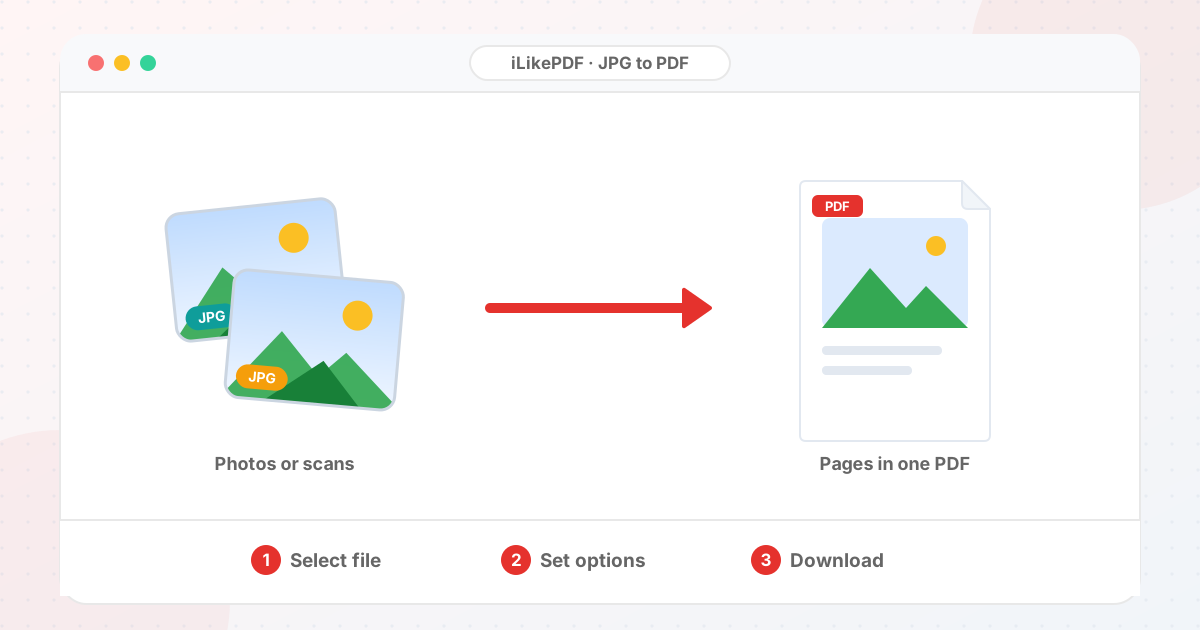
How to Use JPG to PDF
- If a photo is not JPG or PNG, convert it first with the image converter.
- Choose the images in the order you want the pages, or add them in several selections.
- Select Convert Images to PDF. Each image becomes a full-page image.
- Open images-compiled.pdf and check page order, orientation and sharpness.
Before & After
Before (Your original file(s))
- Files as you have them
- Nothing has been changed yet
After (New result file)
- A new file downloads to your device
- Your original stays untouched
Conceptual illustration, not a screenshot.
Supported Input and Output
| Accepted input | JPG and PNG images. Select several at once. Other image types (WebP, GIF, BMP) are not embedded correctly by this version; convert them first. |
| Page size | Each page is sized to its image (one image pixel = one PDF point), so a large photo makes a large page. |
| Output | One PDF named images-compiled.pdf with one image per page, in the order of selection. |
| Margin setting | The margin drop-down is shown but does not currently change the output. |
| File handling | The processing code runs in your browser. The page loads the pdf-lib library from the unpkg CDN when it opens; the tool code does not send your PDF to a server. |
JPG to PDF Features
- ✅ 100% free – no payment, no sign-up, no watermark.
- ✅ No software – jpg to pdf online straight in your browser.
- ✅ Private by design – your file is processed on your device, not uploaded to our servers.
- ✅ Original kept – a new file is created.
- ✅ Works on mobile and desktop – Android, iPhone, Windows and Mac.
Who Should Use JPG to PDF?
- Students – Move content between PDF, Word, Excel, PowerPoint and images for study work.
- Job Seekers – Turn a PDF into an editable file to update a resume or form.
- Professionals – Reuse tables and text from reports without retyping.
- Small Businesses – Prepare quotes and price lists in the format a customer needs.
- General Users – Open or share a document in a format your device supports.
Use Cases and Output Checks
Common uses
- Combine photographed pages into one document.
- Turn phone scans of forms into a single PDF.
- Package receipts or certificates in a set order.
Check the output
- Every image is present and upright.
- Page order matches your selection order.
- File size fits the upload limit.
Limitations and Troubleshooting
- Page size follows image pixels, so very large photos create very large PDF pages.
- Orientation from phone metadata may not be applied; rotate the image first if it looks sideways.
- Compress or resize large photos beforehand to keep the PDF light.
Common problems
| Problem | What to try |
|---|---|
| Error with a WebP or GIF file | Convert it to JPG or PNG first. |
| Pages are different sizes | Resize the images to the same pixel dimensions before combining. |
| PDF is huge | Reduce image size first with the resize or compress tools. |
Related Tools and Guides
Quick Summary
| Feature | Details |
|---|---|
| Tool name | JPG to PDF |
| Cost | 100% free |
| Software required | No |
| File upload | No – processed in your browser |
| Supported devices | Mobile & desktop |
| Best for | Combine photographed pages into one document |
Share This Tool
If you found this tool useful, share it with friends and classmates:
Disclaimer
JPG to PDF is for personal and educational use. Check your local laws and your organisation's rules before you process copyrighted or sensitive documents. Results depend on your file and browser, so always check the output before you use it.
FAQs – JPG to PDF
1. JPG to PDF kaise use karein?
Apni file select karein, settings check karein aur “Convert Images to PDF” button dabayein. Result neeche dikhega; phir Download par tap karein.
2. Kya JPG to PDF free hai?
Haan, iLikePDF ka JPG to PDF tool bilkul free hai. Koi payment ya signup nahi chahiye.
3. Kya main mobile se JPG to PDF use kar sakta hoon?
Haan, yeh tool mobile-friendly hai. Aap Android ya iPhone ke browser se bhi JPG to PDF use kar sakte hain.
4. Kya meri file upload hoti hai?
Nahi. Yeh tool aapke browser me chalta hai; aapki file iLikePDF ke server par upload nahi hoti. (Kuch features ek helper library CDN se load karte hain, lekin aapki file unme nahi jaati.)
5. What does JPG to PDF do?
JPG to PDF places photos or scans onto PDF pages. Use it when the required result matches this operation; keep a separate copy of the source.
6. How do I use JPG to PDF online?
Choose the images, check the available page or ordering settings, then create and save the PDF. Open the downloaded result before sending it to someone else.
7. Which source should I prepare for JPG to PDF?
Prepare supported images and arrange their intended sequence. Start with a file that opens correctly in its usual viewer. A renamed extension does not convert the underlying format.
8. What should I check in the JPG to PDF output?
Check page order, image orientation, margins and small text readability. Keep the original until the result has passed these checks.
9. Does JPG to PDF make image text selectable?
No, placing an image on a PDF page does not recognize its words. Use OCR afterward if you need a searchable text layer.
10. Can several photos become one PDF?
That is possible when multiple-image input is supported. Confirm that all required images appear in the output and in the intended order.
11. Will the photo be cropped to fit the page?
This depends on page-fit settings. Inspect the edges and choose a fit or margin option that preserves the required content.
12. Does a PDF improve a blurry photo?
No. Changing the container cannot restore missing detail. Retake blurred scans before creating the PDF.
13. Can PNG images be used too?
Only if the picker accepts them. Otherwise convert a copy to a supported format and check transparency or background changes first.
14. Which page size should I use?
Match the recipient’s requirement, such as A4 or Letter, when those settings are available. Avoid shrinking a document so much that text becomes difficult to read.
15. Why is my image sideways in the PDF?
Image orientation metadata and actual pixel orientation may differ. Rotate a copy before conversion or rotate the PDF pages afterward.
16. Can I reduce the PDF size afterward?
Yes, a compression step may help image-heavy PDFs. Check the smallest printed text after compression before submitting the document.
17. Why might JPG to PDF fail on a large file?
Many full-resolution phone photos can make processing and the output unusually large. Close unnecessary tabs and test a smaller non-confidential sample to separate a file-specific problem from a browser problem.
18. When is JPG to PDF useful?
Combine photographed notes or receipts into a single document. Confirm the recipient’s requirements before preparing the final version.
19. What can I do after using JPG to PDF?
Related next steps include Compress PDF, Rotate PDF, OCR PDF. Choose one only when you need that additional operation. Review the a PDF containing the selected images before applying another change, and retain your source copy.