About Rotate PDF
Rotate PDF changes the viewing orientation of document pages. Choose the PDF, select an available rotation angle and page scope, then save the result.
iLikePDF's Rotate PDF tool lets you rotate every page in a PDF and save the new orientation – free and without any software. It is a good fit for fix a scan that came out sideways, turn a landscape export upright for printing and correct a phone-scanned document. You may also know it as rotate pdf online, free rotate pdf.
Everything happens in your browser: your files are not uploaded to our servers. It is private by design, quick to use and mobile-friendly.
Full walkthrough: How to Rotate PDF Pages and Save the Change Permanently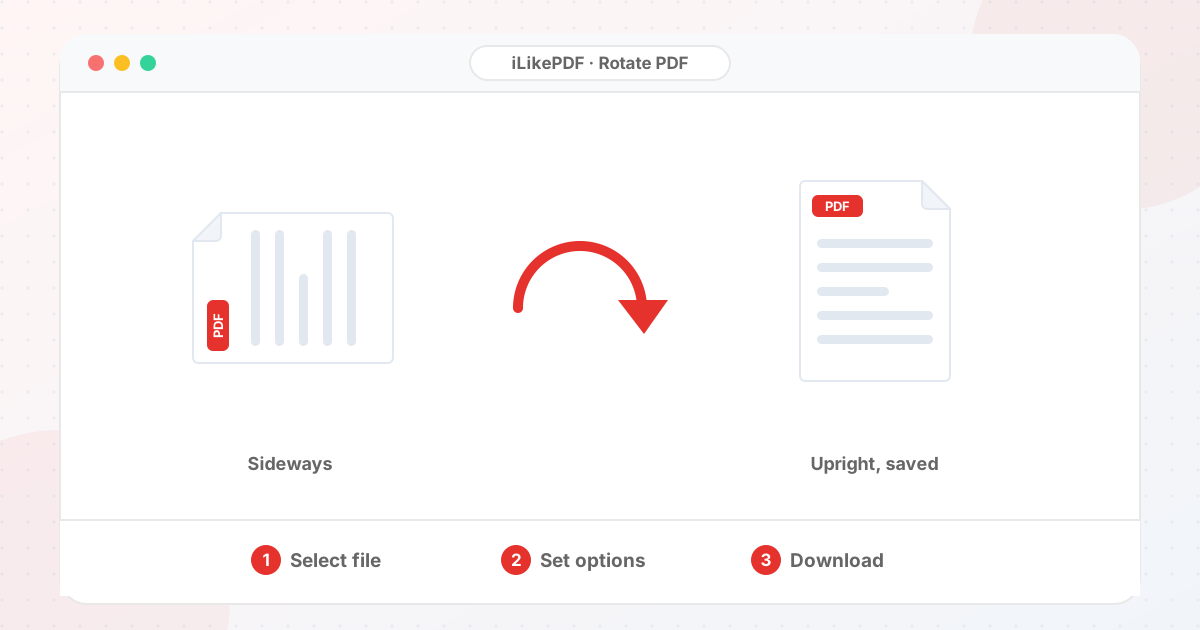
How to Use Rotate PDF
- Choose the PDF.
- Choose 90° clockwise, 180° or 270° counter-clockwise.
- Select Rotate & Download PDF.
- Open the saved copy in a different viewer to confirm the orientation was stored.
Before & After
Before (Your original file(s))
- Files as you have them
- Nothing has been changed yet
After (New result file)
- A new file downloads to your device
- Your original stays untouched
Conceptual illustration, not a screenshot.
Supported Input and Output
| Accepted input | One PDF (.pdf). | ||||||||||||||||||||||
| Options | 90° clockwise, 180°, or 270° counter-clockwise. | ||||||||||||||||||||||
| How it applies | The chosen angle is added to each page's existing rotation, for all pages at once. | ||||||||||||||||||||||
| Output | A PDF named rotated-| File handling | The processing code runs in your browser. The page loads the pdf-lib library from the unpkg CDN when it opens; the tool code does not send your PDF to a server. | Rotate PDF Features
Who Should Use Rotate PDF?
Use Cases and Output ChecksCommon uses
Check the output
Limitations and Troubleshooting
Common problems
Related Tools and GuidesQuick Summary
Share This ToolIf you found this tool useful, share it with friends and classmates: DisclaimerRotate PDF is for personal and educational use. Check your local laws and your organisation's rules before you process copyrighted or sensitive documents. Results depend on your file and browser, so always check the output before you use it. FAQs – Rotate PDF1. Rotate PDF kaise use karein?Apni file select karein, settings check karein aur “Rotate & Download PDF” button dabayein. Result neeche dikhega; phir Download par tap karein. 2. Kya Rotate PDF free hai?Haan, iLikePDF ka Rotate PDF tool bilkul free hai. Koi payment ya signup nahi chahiye. 3. Kya main mobile se Rotate PDF use kar sakta hoon?Haan, yeh tool mobile-friendly hai. Aap Android ya iPhone ke browser se bhi Rotate PDF use kar sakte hain. 4. Kya meri file upload hoti hai?Nahi. Yeh tool aapke browser me chalta hai; aapki file iLikePDF ke server par upload nahi hoti. (Kuch features ek helper library CDN se load karte hain, lekin aapki file unme nahi jaati.) 5. What does Rotate PDF do?Rotate PDF changes the viewing orientation of document pages. Use it when the required result matches this operation; keep a separate copy of the source. 6. How do I use Rotate PDF online?Choose the PDF, select an available rotation angle and page scope, then save the result. Open the downloaded result before sending it to someone else. 7. Which source should I prepare for Rotate PDF?Prepare a PDF and identify the sideways or upside-down pages. Start with a file that opens correctly in its usual viewer. A renamed extension does not convert the underlying format. 8. What should I check in the Rotate PDF output?Check that every intended page is upright and correctly oriented in a separate viewer. Keep the original until the result has passed these checks. 9. Which angle should I use for a sideways page?A quarter turn is 90 degrees; the opposite direction is 270 degrees. Preview the result to choose the direction that makes the text upright. 10. Can I rotate only one page?Only if the tool offers page selection. Otherwise extract the page, rotate it and rebuild the document carefully with Merge PDF. 11. Does rotating crop or resize the page?A rotation need not crop content, but implementations vary. Check all page edges and dimensions in the saved document. 12. Why does the PDF look rotated only in my viewer?Some viewer rotation commands change the display without saving a new orientation. Reopen the downloaded output to confirm the change was written. 13. Can I fix slightly tilted scans with rotation?Right-angle rotation and deskewing are different operations. A slightly tilted scan needs a deskew feature or a corrected source scan. 14. Does rotation make text searchable?No. Rotating a scanned page does not create a text layer; use OCR for search and copying. 15. Will portrait pages become landscape?A quarter turn swaps the viewed width and height. Verify the printing orientation so the page is not automatically rotated back unexpectedly. 16. Can I rotate a digitally signed PDF?A saved modification may affect validation. Keep the signed original and inspect the status if signatures must remain valid. 17. Why might Rotate PDF fail on a large file?A long scan may take extra resources even when the intended change is only orientation. Close unnecessary tabs and test a smaller non-confidential sample to separate a file-specific problem from a browser problem. 18. When is Rotate PDF useful?Correct sideways scans before sharing or combining a document. Confirm the recipient’s requirements before preparing the final version. 19. What can I do after using Rotate PDF?Related next steps include Split PDF, Merge PDF, PDF to JPG. Choose one only when you need that additional operation. Review the a PDF with adjusted page orientation before applying another change, and retain your source copy. |