How to Organize PDF Files: Merge, Split & Rotate
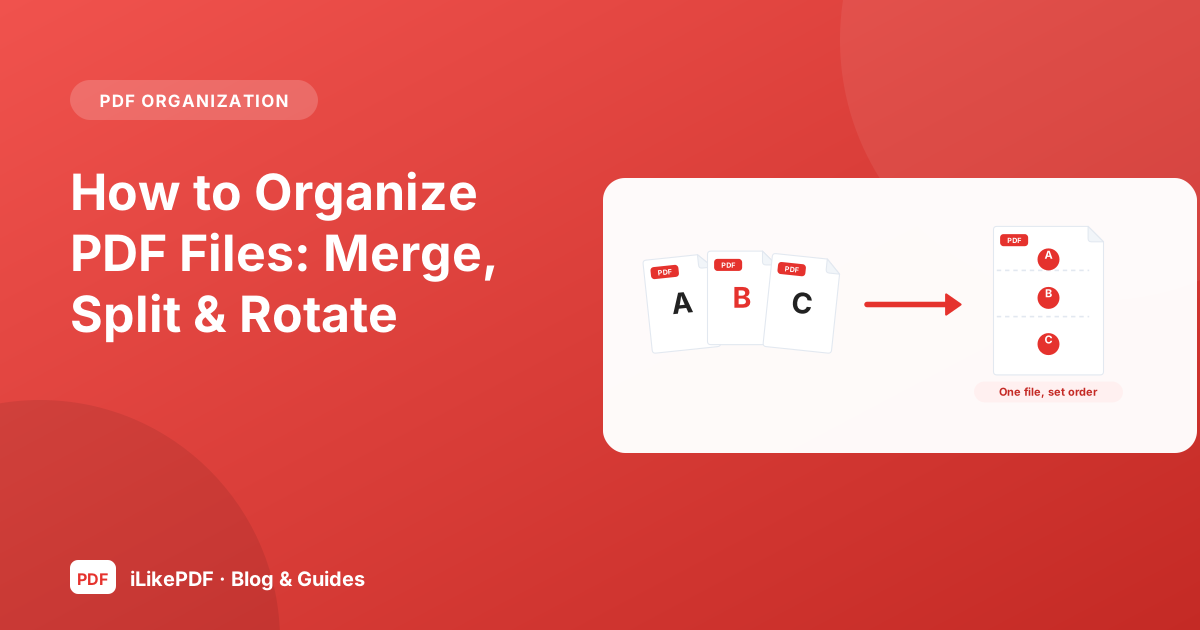
Organize a PDF by choosing the pages you need, correcting their orientation and arranging the final sequence. Combine documents only after checking their contents, add consistent numbering to the finished bundle, and inspect the saved result before sharing it or applying a final signature. This guide is the hub for our organization tools: Merge PDF, Split PDF, Rotate PDF and Page Numbers.
A well-organized PDF is a small courtesy that saves the reader time and saves you from resending files. The individual tools are simple. What makes the difference is the order in which you use them and the checks in between. The sections below follow a practical workflow, with links to detailed articles for each step.
Choose merge, split or rotate
Start by naming the problem in one sentence, then pick the tool that solves exactly that.
| Your situation | Tool | Detailed article |
|---|---|---|
| Several files must become one | Merge PDF | Merging PDF files |
| Only some pages are needed | Split PDF | Splitting a PDF |
| Pages are sideways or upside down | Rotate PDF | Rotating PDF pages |
| The finished file needs page references | Page Numbers | PDF page numbers |
| Every page needs a title or reference line | Header & Footer | Headers and footers |
Many real jobs need two or three of these in sequence. For example, an application bundle often needs page extraction, one rotation and a merge, then numbering.
Plan the final page order
Write the order on paper before you open any tool: which document comes first, which pages of each are needed and where each section ends. Follow the recipient's instructions if they gave any. Number your source files so they sort correctly, for example 01-form.pdf, 02-letter.pdf.
The merge tool joins files in the order of its list and has no drag-to-reorder control, so a good plan matters. If a file is in the wrong place, remove it and add it again. A written plan also gives you something to check against at the end: the total should equal the sum of the pieces.
Extract pages and check ranges
Use Split PDF to keep only the pages the reader needs. Type ranges such as 1-3, 7, 10-12. The tool exports one new file with those pages in the order typed, and it ignores numbers outside the document. If nothing valid is typed, it exports page 1, so always check the page count.
Count pages from the first physical page, not from printed numbers. Covers and contents pages shift the numbers. After extracting, look at the page before your first page and the page after your last page in the original to make sure you did not include unrelated content.
Correct page orientation
Rotate PDF applies one angle to every page of a file, adding it to the existing rotation of each page. That is ideal for a scan that came out sideways. For a mixed document, extract the sideways pages, rotate them and merge them back. Always confirm the result in a second viewer, since some viewers display rotation differently. Fix orientation before numbering, because stamped numbers rotate with the page.
Combine and number the bundle
Merge the pieces in the planned order, then check the total. Only then add numbering, because "Page 7 of 24" should reflect the final document. The numbering tool stamps "Page N of Total" on every page from the first page onward, in four possible positions, and cannot skip a cover page. If you need a title or reference on every page, add it with the header and footer tool before numbering, and check that the two do not overlap. Add any visible signature last.
A typical order is: extract, rotate, merge, header and footer, page numbers, signature. A change made after signing alters the file, so an earlier digital signature would stop verifying.
Check forms, bookmarks and signed originals
Merging and extracting copy pages, but document-level features may not travel with them.
- Forms. Test every field in the combined file, or flatten the form first with Flatten PDF if a fixed appearance is suitable. See what flattening does.
- Bookmarks and links. Internal bookmarks may be lost. Test any links the reader needs.
- Signed originals. A digital signature on a source file will not remain valid in a merged copy. Send signed originals separately when verification matters.
- Password-protected files. The tools cannot open them. Remove the password with an authorised method first; see how to unlock a PDF you are allowed to open.
Fix common organization problems
| Problem | Likely cause | Fix |
|---|---|---|
| Wrong order | Files added in a different order | Remove and add again in sequence |
| Duplicate pages | A file was added twice | Read the list before merging |
| Extra page in an extract | Off-by-one range or printed page numbers used | Recount from the first physical page |
| One sideways page | Mixed orientations | Extract, rotate, merge back |
| Numbers overlap a footer | Fixed number position | Use a top position |
| Bundle too large | High-resolution scans | Remove pages, reduce images; see why compressed PDFs stay large |
| Blank page appears | The source had one | Leave it out of the extract range |
The most reliable habit is to keep your originals in one folder and your working files in another. If something goes wrong, you start again from a clean source in minutes.
A worked example
A student assembling a scholarship application has a form (4 pages), a marksheet scanned sideways (1 page), a recommendation letter (2 pages) and an identity scan (1 page) that also contains an unrelated second page. The portal takes one PDF.
- She extracts page 1 of the identity scan with Split PDF.
- She rotates the marksheet with Rotate PDF and checks it in a second viewer.
- She renames the pieces
01to04and merges them in order. The result should have 8 pages: 4, 1, 2 and 1. - She adds a short header with her name and application number.
- She adds page numbers at the top, because the form has a footer.
- She opens the file, checks the count and the first and last pages, and uploads it.
Each step is tiny, and the plan is what keeps them in the right order.
Frequently asked questions
List the documents, intended reader and required order. Check the recipient’s page, file-size and naming requirements before making the final bundle.
Merge combines separate documents; split extracts parts of one document. A workflow may need both when only selected pages from several files belong together.
Review them first. A blank page may be intentional for print layout or document structure, and automatic removal can change page references.
Use descriptive filenames and compare page counts or contents before processing. Review the beginning and end of each section in the combined PDF.
Follow the recipient’s stated sequence. If none is given, group related items logically and keep a simple record of which source created each section.
Decide whether preserving the originals or standardizing print dimensions matters more. Merging alone may leave mixed page sizes unchanged.
Correcting source copies first can make review easier. Rotation afterward also works when page-specific controls are available; verify every affected page.
Use one when the bundle is long enough that readers need navigation. Build it from the final sequence so titles and page references remain accurate.
Finalize the page order and cover-page treatment first. Apply a continuous numbering scheme and check it against the PDF viewer’s actual page positions.
Retain them separately. A merged or modified viewing bundle may not preserve their validation, so provide the originals when verification is required.
Yes, but test field behavior and values after every transformation. Flatten only when a fixed appearance is suitable for the recipient.
Check every extracted page before sharing. Confirm that the range did not include an adjacent page with unrelated personal or business information.
Review total pages, section boundaries, orientation, numbering, blank pages and readable text. Test links or fields that the recipient needs.
Use a clear project or purpose label and a meaningful version or date. Avoid sensitive identifiers in filenames that may appear in shared lists.
Remove unnecessary content or compress a reviewed copy. Confirm readability and keep the higher-quality source bundle for future use.