PDF Guide
How to Merge PDF Files Online Without Messing Up the Order
Combine PDFs in the exact order you need, in your browser.
220+ free tools to merge, compress and convert PDFs, and resize, compress or convert images — all in your browser, no sign-up needed.
iLikePDF is a free online toolkit to merge, split, compress and convert PDFs, and to compress, resize and convert images to KB. Files stay in your browser: no sign-up, no upload.
Organize, mark up, sign or secure a PDF. Pick the task, then check the saved file before you share it.
Move content between PDF and other formats. Conversions keep content, not always layout, so read the notes on each tool page.
Change pixel size, reduce file size, or switch between JPG, PNG and WebP.
Every image tool below opens directly — no extra click. Grouped by task so you can scan and go straight to the one you need.
Compress JPEG Between 20 KB and 50 KB
Compress Image Between 30 KB and 70 KB
Compress Image Between 30 KB and 100 KB
Convert Image to 480 × 640 Pixels
Resize Image to 140 × 60 Pixels
Resize Image to 200 × 230 Pixels
Resize Image to 240 × 320 Pixels
Resize Image to 320 × 240 Pixels
Resize Image to 600 × 600 Pixels
Resize Image to 3.5 cm × 4.5 cm
White Background Passport Photo
Blue Background Passport Photo
2 × 2 Photo with White Background
Bangladesh Passport Size Photo
Resize Signature to 50 mm × 20 mm
Skin Retouching (Manual Smoothing)
Remove Wrinkles from Photo (Soften)
Resize Image for Instagram (No Crop)
| If you need to… | Start with | Then check |
|---|---|---|
| Combine several PDFs into one | Merge PDF | Page order and final page count |
| Keep only some pages of a PDF | Split PDF | Page positions can differ from printed numbers |
| Number the pages of a combined report | Page Numbers | Run it after merging, not before |
| Try to make a PDF smaller | Compress PDF | Compare the saved size; scans may not shrink |
| Get editable text out of a PDF | PDF to Word | Text is extracted; layout is not rebuilt |
| Turn photos or scans into one PDF | JPG to PDF | Image order and orientation |
| Fit an image under an upload limit in KB | Image Size Converter | Whether the target was actually reached |
| Change an image's width and height | Resize Image | Aspect ratio and sharpness |
| Switch an image between JPG, PNG and WebP | Convert Image Format, PNG to JPG | Transparency and file size |

Pick a tool, then choose a file from your device. Work on a copy so the original stays safe.

Choose page ranges, rotation, quality or target size where the tool offers them.
Open the saved file and confirm page count, legibility and size before you send it.
For a job with several steps, keep the original, merge first, add page numbers or headers next, and compress last. Check the result after each step so a mistake does not carry forward.
Use the PDF and image tools without creating an account or entering payment details.
Most tools run in your browser tab, so there is nothing to install before you get started.
Prepare documents, applications, signatures, passport photos and upload-size requirements in one place.
10 practical how-to guides — pick your task, follow the steps, and check the result before you share it.
How to Merge PDF Files Online Without Messing Up the Order
How to Split a PDF and Extract Only the Pages You Need
Why Your Compressed PDF Is Still Too Large (and What to Try)
How to Convert PDF to Word: Editable Text vs Exact Layout
How to Sign a PDF Online: Visible Signatures vs Digital Signatures
How to Compress an Image Without Ruining It
Pixels vs KB vs Print Size: How to Resize an Image Correctly
JPG to PNG, PNG to JPG and WebP: Convert Image Formats Correctly
How to Rotate an Image Without Losing Quality
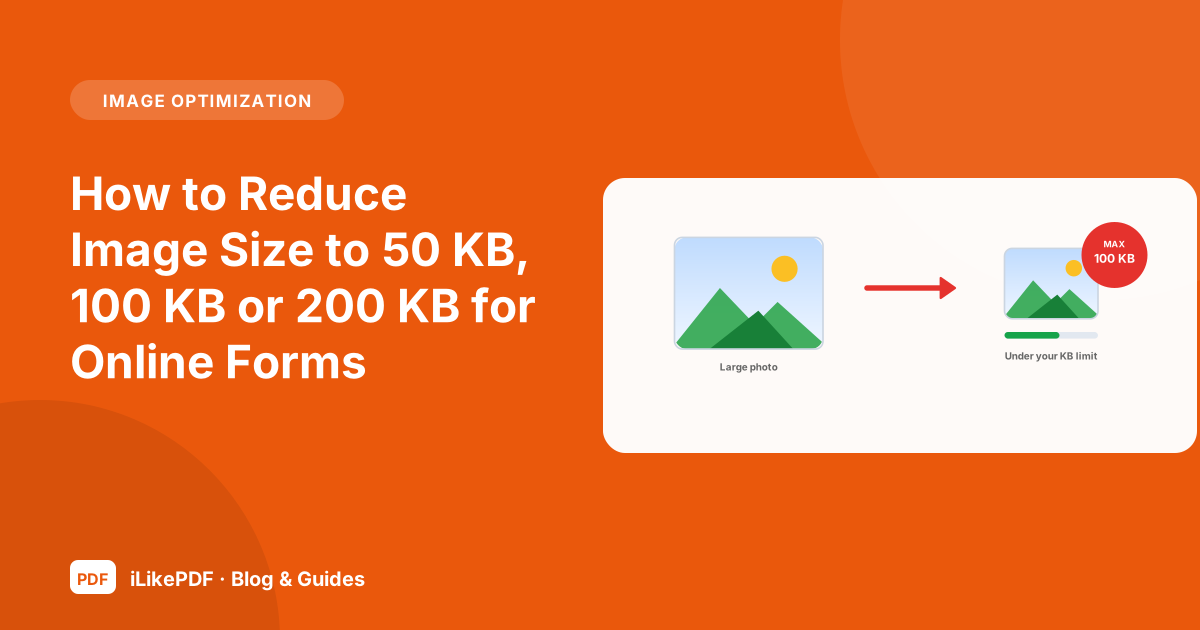
How to Reduce Image Size to 50 KB, 100 KB or 200 KB for Online Forms
Quick answers about our PDF and image tools.
Use Merge PDF when you want one document from multiple PDF files. Check the file order and final page count before sharing the combined result.
Use Split PDF to extract the pages or ranges you need. Page positions may differ from printed page numbers, especially in documents with covers.
Use Compress PDF and compare the saved size with the original. Image-heavy scans may shrink more than an already optimized text document.
Use Rotate PDF, then open the saved copy in another viewer. Preview rotation alone does not prove that the new orientation has been saved.
Use Edit PDF for the actions actually shown in its interface. For major wording or layout changes, editing the original document is often more reliable.
Merge and arrange the document first, then use Page Numbers. Check cover pages, numbering offsets and existing footers for conflicts.
Use a watermark to indicate draft status or identify a copy. It does not replace encryption, secure redaction or a verified signature.
Flattening can turn supported form fields or annotations into fixed page appearances. Keep the editable original and confirm that all entered values remain visible.
Use Sign PDF for the supported placement workflow. A visible signature image is different from a certificate-based digital signature, so confirm the recipient’s requirements.
Use Protect PDF if it supports your required access settings. Reopen the saved file to verify that the password works and the intended protection was applied.
Use it for documents you are authorized to access and modify. Encrypted PDFs may require the valid password; do not assume unknown passwords can be recovered.
Use Header & Footer when you need margin text across pages. Keep the wording short and check that it does not cover document content.
Usually finalize content and page order before compression and signing. Check the output after every step, and preserve any original digitally signed documents.
Saving a processed result normally creates another file. Keep a separate original and choose filenames carefully so you do not replace the source by mistake.
Try a small readable sample, check the accepted format and note the error. A damaged source, unsupported feature or browser memory limit can prevent completion.
Use Word to PDF with a supported source file. Inspect fonts, page breaks and tables in the result before treating it as the final version.
Use Excel to PDF. Check print area, orientation and clipped columns, because a wide worksheet may not fit neatly on one page.
Use PDF to Excel for supported table extraction. Compare amounts, dates and column boundaries with the source before using the data for calculations.
Use PDF to Word for editable text, PDF to Excel for tables, or PDF to PowerPoint for slides. Check the result in each case, since layout and formulas are not always rebuilt exactly.
Use PDF to PowerPoint and inspect the resulting presentation. The export may contain page images rather than fully editable slide objects.
Use JPG to PDF when the image formats are accepted. Check ordering, orientation and margins, then use OCR separately if searchable text is needed.
Use PDF to JPG to render a page as an image. Image output will not retain selectable text, interactive fields or clickable PDF links.
Use OCR PDF if searchable output is supported. Recognition quality depends on the scan, language and engine; verify important names and numbers manually.
Conversion changes the file format or structure. OCR recognizes characters in images; ordinary conversion alone may leave a scan as a picture.
The page may contain only pixels. OCR can add recognized text or provide a text export, but the recognized result needs checking.
A PDF usually contains displayed values rather than the formulas that produced them. Rebuild formulas and validate totals in the spreadsheet after extraction.
No universal guarantee is possible. Complex fonts, charts, tables and forms can change; compare a representative page and inspect the whole output.
Not reliably. Start with a file that opens correctly; recover or re-export a damaged source before attempting further transformations.
Compatibility depends on the tool and protection type. Use an authorized accessible copy and provide a valid password only through the appropriate controls.
Use PDF for a stable viewing copy, a workbook for calculations and a presentation for slide editing. Follow any explicit format requirements from the recipient.
Conversion can remove editability, structure or interactive features. Retaining the source lets you correct content and create a fresh export without repeated conversion loss.
Use Compress Image when you want fewer bytes. Compare detail and file size after export; high compression can damage small text and edges.
Use Resize Image for width and height. Keep the aspect ratio when you need the original shape rather than a stretched result.
Use Convert Image Format with a supported input and destination. Check transparency and compatibility after the conversion.
Use Image Size Converter and enter the required maximum. Then verify actual bytes, dimensions and format against the destination’s requirements.
Use Rotate Image with the available angle controls. Reopen the saved image to verify orientation, particularly with photos that contain orientation metadata.
Use Flip Image and choose the appropriate axis. Horizontal mirroring reverses left and right, including any text or logos in the image.
No. File size measures bytes, while dimensions measure pixels. Upload forms may require both a maximum file size and exact width and height.
The source may have too little detail, or it may have been enlarged too far. Ordinary resizing cannot reconstruct information absent from the original.
Format conversion alone does not identify and remove a background. Transparency support and background-removal functionality are separate capabilities.
PNG and WebP can support transparency, while JPG cannot. The exporter must also preserve the alpha channel for transparent regions to survive.
Preparing suitable dimensions can reduce an image-heavy PDF’s size. Avoid aggressive compression that makes scanned text unreadable before conversion.
Yes, using the appropriate dimension and size tools. Follow the form’s actual rules for format, contrast, margins and legibility rather than relying only on a KB number.
Check whether each has a functioning interface and downloadable result. A promotional card alone does not establish that a feature is available.
Do not assume identical processing across all tools. Review the relevant data-handling disclosure, especially for features that may use external services.
No. The receiving site may validate format, dimensions, size and document content. Inspect the saved result against all current submission requirements.
No. The PDF and image tools on this page work without creating an account or signing in. Just open a tool, add your file and download the result.
No installs, no sign-up — pick a toolkit, run the job on a copy of your file, and download the result.
The tools read the file you choose on your own device and create the result there. They do not upload your file to our servers. Some pages load open-source processing libraries from a public content-delivery network when they open, so you need an internet connection to load a tool for the first time.
Because the work happens on your device, very large PDFs or high-resolution photos can be slow or fail on a phone with little free memory. If a job stalls, try a smaller file, close other tabs, or use a desktop browser.
A few tools do less than their names suggest in this version. Compress PDF, Word to PDF, Excel to PDF, Protect PDF, Unlock PDF, OCR PDF. Each of these pages explains exactly what the tool does today, so you can decide whether it fits before you use it. For sensitive documents, do not rely on a limited tool: use your word processor's password option or a desktop application instead.
Conversion and compression change a file. Keep the original, open the saved result, and confirm page count, legibility and size before you send it to anyone. The PDF organization guide and the image size guide list checks that are worth running.