Rotate Image: Step-by-Step Guide
To use Rotate Image, open the tool, choose your file, and let it process in your browser — nothing is uploaded. Rotate an image by 90° or 180°. The result downloads straight to your device, free and without sign-up.
Rotate Image lets you crop a picture to a shape, join several pictures together, split one image into parts, or otherwise rearrange it — all processed on-canvas in your browser.
What Is Rotate Image?
Rotate Image lets you crop a picture to a shape, join several pictures together, split one image into parts, or otherwise rearrange it — all processed on-canvas in your browser.
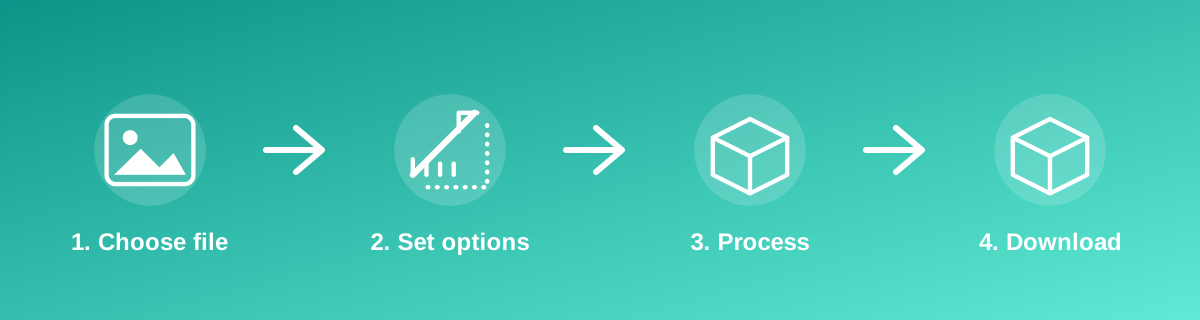
How to Use It — Step by Step
- Open Rotate Image and select your image or images.
- Adjust the crop area, order or arrangement as needed.
- Preview the result before saving.
- Download the finished image.
Why Use This Tool?
- Removes unwanted parts of a photo or combines several photos without desktop software.
- Produces exact shapes (square, circle, freehand) that social platforms and forms often require.
- Runs locally, so your images are never uploaded to a server.
- No sign-up and no limit on repeated use.
Supported File Formats
Rotate Image accepts: Common image formats supported by your browser. Always confirm the accepted formats on the tool page itself if you are working with an unusual file type.
Quality, Resolution and File Size Considerations
Cropping does not reduce quality by itself — it simply keeps a portion of the original pixels — but cropping in tightly and then displaying the result at a large size can make limited detail more visible. Joining several images works best when they share a similar resolution; mixing a very high-resolution photo with a very low-resolution one can leave the result looking uneven.
Is It Safe and Private?
Rotate Image runs its processing in your browser using your device's own resources. The tool code does not make an upload request for the file you select, so your file is not sent to a server for this task. Keep in mind that no tool can guarantee what happens after you download and share a file elsewhere — that depends on where you send it next.
Best Practices
- Start from the highest-resolution version of a photo you have before cropping tightly.
- Match the required aspect ratio (square, 4:3, etc.) before cropping, so nothing important is cut off later.
- When joining photos, use images of similar size and quality for the most consistent result.
- Preview the final composition before downloading, since small misalignments are easier to fix before saving.
Common Problems and Fixes
Part of the subject got cut off Preview the crop area carefully, especially near the edges, and adjust before confirming — cropping cannot be undone once the file is saved over the original.
Joined images don't line up evenly Use photos with matching dimensions, or crop each one to the same size first, before joining them.
The result looks pixelated This usually means the source photo's resolution was already low; a crop or join cannot add detail that wasn't in the original.
Frequently Asked Questions
Yes, this tool is free with no daily limit and no watermark added to the result.
No sign-up is required. Open the tool page and use it directly.
No — the tool processes your file in your own browser, so it is not uploaded anywhere for this task.
Yes, the tool page is mobile-friendly and works in a phone browser as well as on a desktop.
No — always keep the original file, since cropping and saving over it removes the trimmed portion permanently.
This depends on the specific tool; check the tool page for any stated limit on the number of images.
Related Tools
Key Takeaways
- Rotate Image runs in your browser — free, no sign-up, and your file is not uploaded for this task.
- Follow the four steps above and check the result before you rely on it for a form, portal or upload.
- Keep your original file, since results from lossy or destructive edits cannot always be undone.
Reviewed and updated 25 September 2026 by the iLikePDF Editorial team. This guide describes how the Rotate Image tool on iLikePDF works; always verify results against the specific requirements of the form, portal or platform you are submitting to.