About Convert Image Format
Convert Image Format changes a supported image into another supported file format. Select the image, choose an offered output format, convert and inspect the saved file. Check the extension, visual appearance, transparency, dimensions and compatibility.
iLikePDF's Convert Image Format tool lets you save an image as PNG, JPG or WebP – free and without any software. It is a good fit for turn a WebP download into JPG or PNG for an older application, save a logo as PNG to keep a transparent background and make a smaller JPG from a large PNG photo. You may also know it as convert image format online, free convert image format.
Everything happens in your browser: your files are not uploaded to our servers. It is private by design, quick to use and mobile-friendly.
Full walkthrough: JPG to PNG, PNG to JPG and WebP: Convert Image Formats Correctly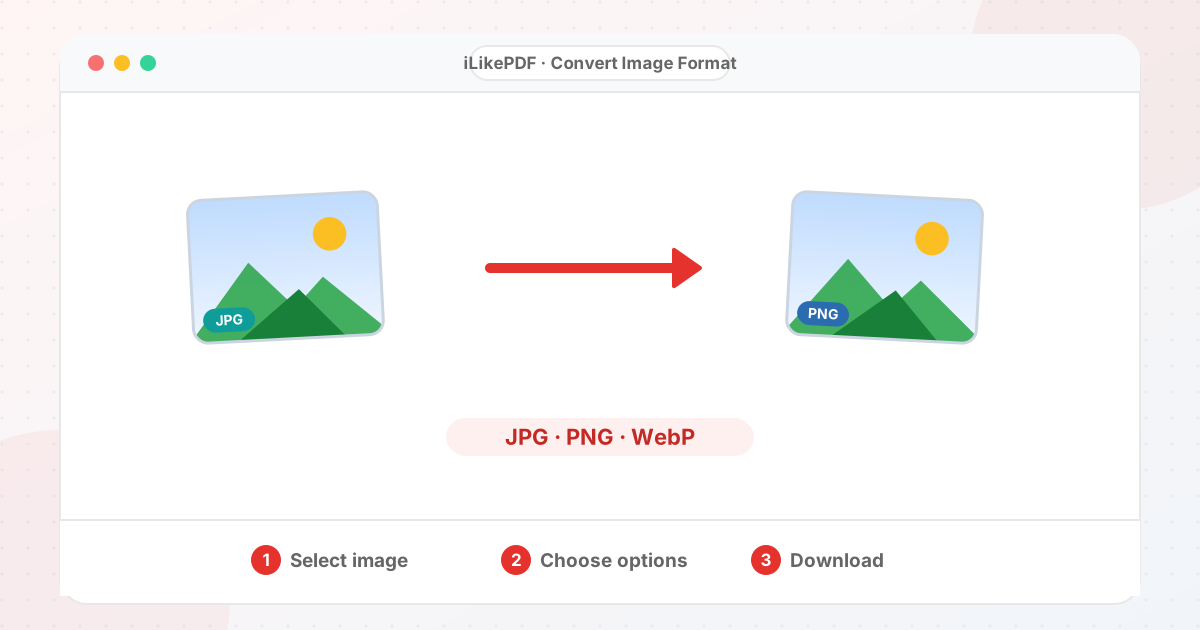
How to Use Convert Image Format
- Choose the image.
- Pick PNG, JPG or WebP in the format menu.
- Select Convert Image Format. The converted file downloads.
- Open it and check colours, edges, transparency and dimensions.
Before & After
Before (Your original file(s))
- Files as you have them
- Nothing has been changed yet
After (New result file)
- A new file downloads to your device
- Your original stays untouched
Conceptual illustration, not a screenshot.
Supported Input and Output
| Accepted input | Any image your browser can open: JPG, PNG, WebP, GIF (first frame only), BMP. |
| Output formats | PNG (lossless), JPG (quality 0.92) or WebP (quality 0.92). |
| Transparency | Kept for PNG and WebP. For JPG, transparent areas are filled with white. |
| Output name | The original name with the new extension. |
| File handling | Everything runs in your browser through the canvas API. The page loads no processing library, and the tool code makes no upload request. |
Convert Image Format Features
- ✅ 100% free – no payment, no sign-up, no watermark.
- ✅ No software – convert image format online straight in your browser.
- ✅ Private by design – your file is processed on your device, not uploaded to our servers.
- ✅ Original kept – you download a new copy.
- ✅ Works on mobile and desktop – Android, iPhone, Windows and Mac.
Who Should Use Convert Image Format?
- Students – Turn phone pictures into a format a college portal accepts.
- Job Seekers – Convert pictures to the file type a form allows.
- Professionals – Send files in a format every colleague and client can open.
- Small Businesses – Prepare web-friendly images for a shop or website.
- General Users – Open pictures your phone or computer cannot read.
Use Cases and Output Checks
Common uses
- Turn a WebP download into JPG or PNG for an older application.
- Save a logo as PNG to keep a transparent background.
- Make a smaller JPG from a large PNG photo.
Check the output
- The file opens in the application that needs it.
- Transparent areas look correct (white for JPG).
- Dimensions are unchanged.
- Text and line art still look sharp.
Limitations and Troubleshooting
- Animated GIFs keep only their first frame.
- Converting to JPG or WebP is lossy; converting JPG to PNG cannot restore lost detail.
- If your browser cannot encode WebP, the tool reports it instead of saving a mislabelled file.
- For direct one-step pages see the dedicated JPG to PNG and PNG to JPG tools.
Common problems
| Problem | What to try |
|---|---|
| Transparent logo has a white box | JPG cannot store transparency. Choose PNG or WebP. |
| File is larger after conversion | PNG is lossless, so photos usually grow. Choose JPG or WebP for photos. |
Related Tools and Guides
Quick Summary
| Feature | Details |
|---|---|
| Tool name | Convert Image Format |
| Cost | 100% free |
| Software required | No |
| File upload | No – processed in your browser |
| Supported devices | Mobile & desktop |
| Best for | Turn a WebP download into JPG or PNG for an older application |
Share This Tool
If you found this tool useful, share it with friends and classmates:
Disclaimer
Convert Image Format is for personal and educational use. Check your local laws and your organisation's rules before you process copyrighted or sensitive documents. Results depend on your file and browser, so always check the output before you use it.
FAQs – Convert Image Format
1. Convert Image Format kaise use karein?
Apni file select karein, settings check karein aur “Convert Image Format” button dabayein. Result neeche dikhega; phir Download par tap karein.
2. Kya Convert Image Format free hai?
Haan, iLikePDF ka Convert Image Format tool bilkul free hai. Koi payment ya signup nahi chahiye.
3. Kya main mobile se Convert Image Format use kar sakta hoon?
Haan, yeh tool mobile-friendly hai. Aap Android ya iPhone ke browser se bhi Convert Image Format use kar sakte hain.
4. Kya meri file upload hoti hai?
Nahi. Yeh tool aapke browser me chalta hai; aapki file iLikePDF ke server par upload nahi hoti. (Kuch features ek helper library CDN se load karte hain, lekin aapki file unme nahi jaati.)
5. What does Convert Image Format do?
Convert Image Format changes a supported image into another supported file format. Use it when the required result matches this operation; keep a separate copy of the source.
6. How do I use Convert Image Format online?
Select the image, choose an offered output format, convert and inspect the saved file. Open the downloaded result before sending it to someone else.
7. Which source should I prepare for Convert Image Format?
Prepare a readable image and check the available output formats. Start with a file that opens correctly in its usual viewer. A renamed extension does not convert the underlying format.
8. What should I check in the Convert Image Format output?
Check the extension, visual appearance, transparency, dimensions and compatibility. Keep the original until the result has passed these checks.
9. Does renaming .png to .jpg convert an image?
No. Renaming changes the label, not the encoded data. Use actual conversion and verify that the receiving application can open it.
10. What happens when transparent PNG becomes JPG?
JPEG cannot preserve transparency, so transparent areas must receive a background. Inspect that background before using the converted image.
11. Will JPG-to-PNG restore lost quality?
No. It cannot recover detail discarded by earlier JPEG compression. It can store the current pixels without further JPEG loss.
12. Can I convert WebP for an older application?
Choose a supported destination format such as JPG or PNG if offered. Confirm that the converted file opens in the target application.
13. Why do colors look different after conversion?
Color profiles and encoding handling can differ. Compare the original and output in the same color-managed viewer when color accuracy matters.
14. Will an animated file remain animated?
Only if both the destination format and conversion engine support animation. Otherwise the result may contain only one frame.
15. Which format is best for text-heavy screenshots?
A lossless format can preserve sharp edges well, but compatibility and size matter too. Inspect small text before selecting a final format.
16. Does image conversion change pixel dimensions?
It need not, but an implementation may resize during export. Check the actual width and height after conversion.
17. Why might Convert Image Format fail on a large file?
Unsupported codecs or very large images may prevent decoding or export. Close unnecessary tabs and test a smaller non-confidential sample to separate a file-specific problem from a browser problem.
18. When is Convert Image Format useful?
Prepare an image format accepted by a website, document editor or upload form. Confirm the recipient’s requirements before preparing the final version.
19. What can I do after using Convert Image Format?
Related next steps include Compress Image, Resize Image, JPG to PDF. Choose one only when you need that additional operation. Review the an image in the chosen supported format before applying another change, and retain your source copy.