About Compress Image
Compress Image reduces the stored size of supported image files. Select the image, choose any available quality controls, compress and compare the saved file. Check visual detail, text edges, output dimensions, format and byte size.
iLikePDF's Compress Image tool lets you re-save a photo as a lighter JPEG using a quality level you choose – free and without any software. It is a good fit for make a photo small enough for email or a chat app, lighten images for a web page and reduce the size of a screenshot before uploading. You may also know it as compress image online, free compress image.
Everything happens in your browser: your files are not uploaded to our servers. It is private by design, quick to use and mobile-friendly.
Full walkthrough: How to Compress an Image Without Ruining It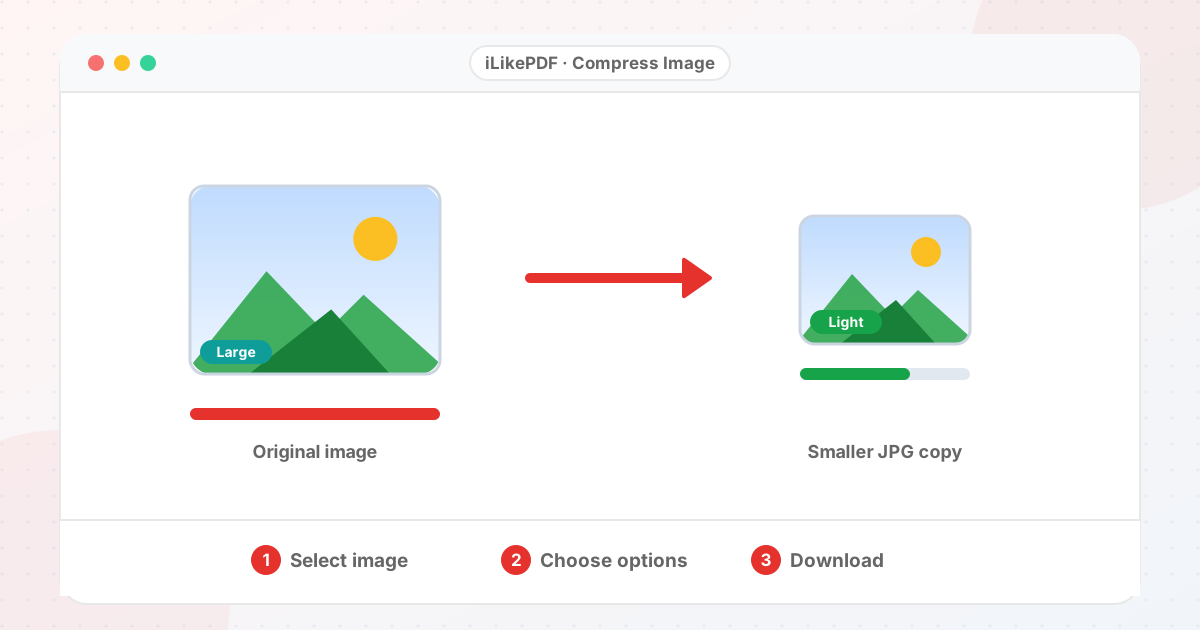
How to Use Compress Image
- Choose the image.
- Pick a quality level. Start with Balanced.
- Select Compress Image File. The download starts and a message shows the size before and after.
- Open the result at 100% zoom and check faces, text and edges. If it looks too rough, run again from the original with a lighter level.
Before & After
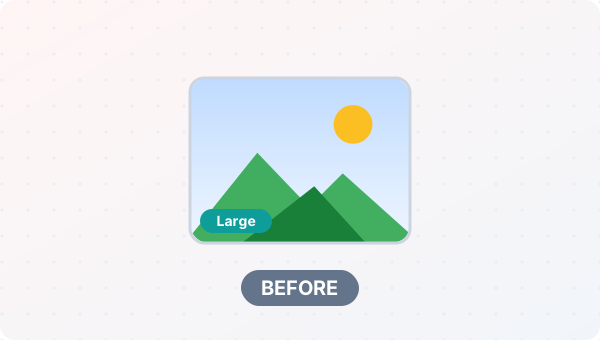
Before (Your original file(s))
- Files as you have them
- Nothing has been changed yet
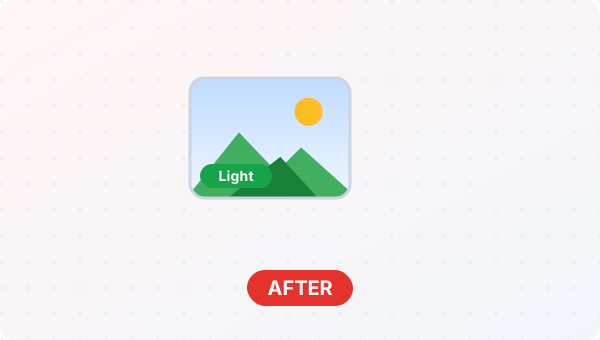
After (New result file)
- A new file downloads to your device
- Your original stays untouched
Conceptual illustration, not a screenshot.
Supported Input and Output
| Accepted input | Any image your browser can open: JPG, PNG, WebP, GIF (first frame) or BMP. | ||||||||||||||||||||||||||
| Quality levels | Light (0.85), Balanced (0.7, recommended) and High compression (0.5). | ||||||||||||||||||||||||||
| Output | A JPEG named compressed-| Dimensions | Unchanged. Only the encoding quality changes. | Metadata | Camera and location metadata are not carried over because the image is redrawn on a canvas. | File handling | Everything runs in your browser through the canvas API. The page loads no processing library, and the tool code makes no upload request. | Compress Image Features
Who Should Use Compress Image?
Use Cases and Output ChecksCommon uses
Check the output
Limitations and Troubleshooting
Common problems
Related Tools and GuidesQuick Summary
Share This ToolIf you found this tool useful, share it with friends and classmates: DisclaimerCompress Image is for personal and educational use. Check your local laws and your organisation's rules before you process copyrighted or sensitive documents. Results depend on your file and browser, so always check the output before you use it. FAQs – Compress Image1. Compress Image kaise use karein?Apni file select karein, settings check karein aur “Compress Image File” button dabayein. Result neeche dikhega; phir Download par tap karein. 2. Kya Compress Image free hai?Haan, iLikePDF ka Compress Image tool bilkul free hai. Koi payment ya signup nahi chahiye. 3. Kya main mobile se Compress Image use kar sakta hoon?Haan, yeh tool mobile-friendly hai. Aap Android ya iPhone ke browser se bhi Compress Image use kar sakte hain. 4. Kya meri file upload hoti hai?Nahi. Yeh tool aapke browser me chalta hai; aapki file iLikePDF ke server par upload nahi hoti. (Kuch features ek helper library CDN se load karte hain, lekin aapki file unme nahi jaati.) 5. What does Compress Image do?Compress Image reduces the stored size of supported image files. Use it when the required result matches this operation; keep a separate copy of the source. 6. How do I use Compress Image online?Select the image, choose any available quality controls, compress and compare the saved file. Open the downloaded result before sending it to someone else. 7. Which source should I prepare for Compress Image?Prepare an original image in a format accepted by the picker. Start with a file that opens correctly in its usual viewer. A renamed extension does not convert the underlying format. 8. What should I check in the Compress Image output?Check visual detail, text edges, output dimensions, format and byte size. Keep the original until the result has passed these checks. 9. Is compression the same as resizing?No. Compression changes encoding or quality; resizing changes pixel dimensions. Use both only when each is needed. 10. Can I compress an image without visible quality loss?Sometimes moderate compression looks similar at normal viewing size. Inspect the result; no universal setting preserves every detail in every image. 11. Why did a PNG become larger?Some PNG content is already compact or poorly suited to the chosen encoding. Compare formats and retain the smallest acceptable version. 12. Should I use JPG, PNG or WebP?Photographs often suit lossy formats; transparency and sharp graphics may need different settings. Choose a format accepted by the destination and inspect the output. 13. Does compression remove photo metadata?Not necessarily. Metadata handling varies. Verify removal separately before sharing images with location or other sensitive embedded details. 14. Will transparency survive compression?Only if the chosen output format and implementation preserve alpha transparency. JPEG output cannot keep transparent pixels. 15. Can I compress an animated image?Only if animation is explicitly supported. Some image workflows export a single frame, so check motion and frame count afterward. 16. Should I compress the same image repeatedly?Repeated lossy encoding can accumulate artifacts. Work from the original and create one final optimized copy whenever possible. 17. Why might Compress Image fail on a large file?Very large pixel dimensions may use much more memory than the file’s stored size suggests. Close unnecessary tabs and test a smaller non-confidential sample to separate a file-specific problem from a browser problem. 18. When is Compress Image useful?Prepare product photos or website graphics for lighter downloads. Confirm the recipient’s requirements before preparing the final version. 19. What can I do after using Compress Image?Related next steps include Resize Image, Convert Image Format, Image Size Converter. Choose one only when you need that additional operation. Review the an optimized image in a supported format before applying another change, and retain your source copy. |