PDF to Word: Step-by-Step Guide
To use PDF to Word, open the tool, choose your file, and let it process in your browser — nothing is uploaded. Extract PDF text into a Word-compatible file. The result downloads straight to your device, free and without sign-up.
PDF to Word converts a PDF to or from another document format — Word, Excel, PowerPoint or images — processed in your browser so the file stays on your device.
What Is PDF to Word?
PDF to Word converts a PDF to or from another document format — Word, Excel, PowerPoint or images — processed in your browser so the file stays on your device.
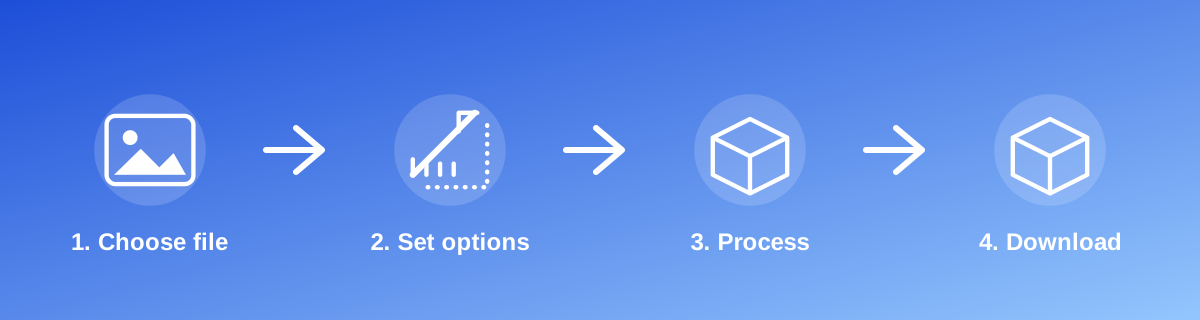
How to Use It — Step by Step
- Open PDF to Word and select your file.
- Let the tool convert it in your browser.
- Review the converted document.
- Download the result.
Why Use This Tool?
- Turns a PDF into an editable format, or a document into a shareable PDF.
- No need to install separate conversion software.
- Processing happens locally rather than through a remote conversion service.
- Free to convert as many documents as you need.
Supported File Formats
PDF to Word accepts: PDF. Always confirm the accepted formats on the tool page itself if you are working with an unusual file type.
Is It Safe and Private?
PDF to Word runs its processing in your browser using your device's own resources. The tool code does not make an upload request for the file you select, so your file is not sent to a server for this task. Keep in mind that no tool can guarantee what happens after you download and share a file elsewhere — that depends on where you send it next.
Best Practices
- Check fonts, tables and page breaks in the converted file before treating it as final — conversions rarely preserve complex layouts perfectly.
- Keep the original file, since conversion is not always perfectly reversible.
- For documents with tables, verify numbers and column alignment carefully after conversion.
- Use a recent, undamaged source file for the most reliable conversion.
Common Problems and Fixes
The layout looks different after conversion Complex layouts, custom fonts and tables don't always convert perfectly between formats; review and adjust the result manually if needed.
Some text is missing This usually means the source PDF contains scanned images rather than real text; use an OCR tool first to recognise the text.
Tables lost their formulas A PDF stores displayed values, not the formulas that produced them; you'll need to rebuild any formulas in the converted spreadsheet.
Frequently Asked Questions
Yes, this tool is free with no daily limit and no watermark added to the result.
No sign-up is required. Open the tool page and use it directly.
No — the tool processes your file in your own browser, so it is not uploaded anywhere for this task.
Yes, the tool page is mobile-friendly and works in a phone browser as well as on a desktop.
PDF to Word is built specifically to reach this target — check the on-page result against the PDF → WORD figure before you rely on it.
Close, but not guaranteed identical — always review the converted file, especially for complex layouts.
Text extraction works best with native, selectable PDF text; use an OCR tool first for scanned image-based PDFs.
Related Tools
Key Takeaways
- PDF to Word runs in your browser — free, no sign-up, and your file is not uploaded for this task.
- Follow the four steps above and check the result before you rely on it for a form, portal or upload.
- Keep your original file, since results from lossy or destructive edits cannot always be undone.
Reviewed and updated 25 September 2026 by the iLikePDF Editorial team. This guide describes how the PDF to Word tool on iLikePDF works; always verify results against the specific requirements of the form, portal or platform you are submitting to.