About PDF to Excel
PDF to Excel attempts to turn document tables into spreadsheet data. Select the PDF, run the available conversion and open the exported spreadsheet. Check column alignment, decimal marks, dates, leading zeros and totals against the source.
iLikePDF's PDF to Excel tool lets you extract the text rows of a PDF into a CSV file you can open in a spreadsheet – free and without any software. It is a good fit for move a price list or timetable out of a PDF, pull rows from a statement into a sheet for checking and start a table rebuild from extracted text. You may also know it as pdf to excel online, free pdf to excel.
Everything happens in your browser: your files are not uploaded to our servers. It is private by design, quick to use and mobile-friendly.
Full walkthrough: How to Convert PDF Tables to Excel Without Losing Data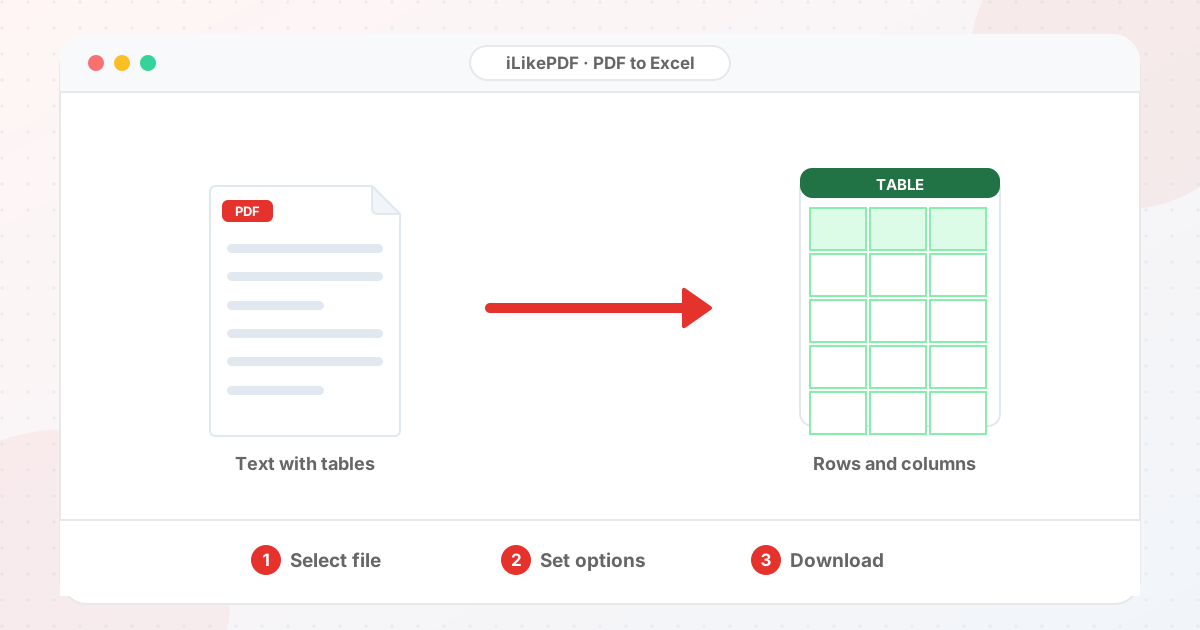
How to Use PDF to Excel
- Choose a PDF whose text is selectable.
- Pick CSV unless you specifically need the .xls extension.
- Select Extract Data & Convert to Excel and open the file in a spreadsheet application.
- Import through the spreadsheet's text/CSV import if you need to keep leading zeros or long numbers as text.
Before & After
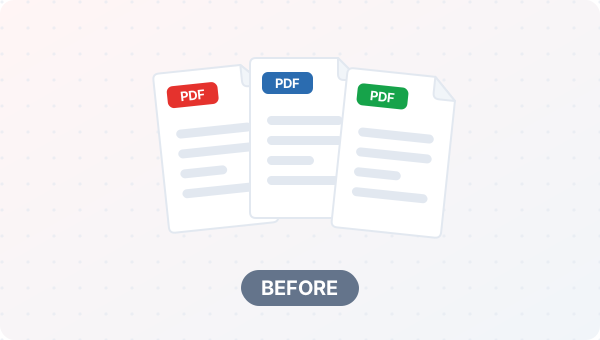
Before (Your original file(s))
- Files as you have them
- Nothing has been changed yet
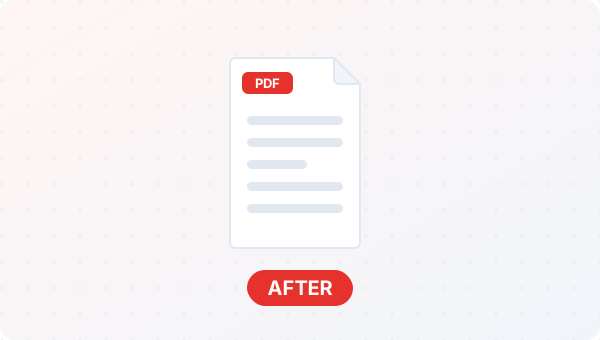
After (New result file)
- A new file downloads to your device
- Your original stays untouched
Conceptual illustration, not a screenshot.
Supported Input and Output
| Accepted input | One PDF (.pdf) with selectable text. |
| Output format | CSV (recommended) or a file with an .xls extension. Both contain the same text rows; the .xls option may trigger a format warning in Excel. |
| Structure | Each output row starts with the page number, followed by the cells found on one text line. |
| Not detected | Ruled table borders, merged cells and number formats are not recreated. |
| File handling | The processing code runs in your browser. The page loads pdf-lib and pdf.js from the unpkg CDN when it opens; the tool code does not send your PDF to a server. |
PDF to Excel Features
- ✅ 100% free – no payment, no sign-up, no watermark.
- ✅ No software – pdf to excel online straight in your browser.
- ✅ Private by design – your file is processed on your device, not uploaded to our servers.
- ✅ Original kept – a new file is created.
- ✅ Works on mobile and desktop – Android, iPhone, Windows and Mac.
Who Should Use PDF to Excel?
- Students – Move content between PDF, Word, Excel, PowerPoint and images for study work.
- Job Seekers – Turn a PDF into an editable file to update a resume or form.
- Professionals – Reuse tables and text from reports without retyping.
- Small Businesses – Prepare quotes and price lists in the format a customer needs.
- General Users – Open or share a document in a format your device supports.
Use Cases and Output Checks
Common uses
- Move a price list or timetable out of a PDF.
- Pull rows from a statement into a sheet for checking.
- Start a table rebuild from extracted text.
Check the output
- Row count is plausible for each page.
- Codes and IDs with leading zeros are still intact.
- Decimals and thousands separators are read correctly.
Limitations and Troubleshooting
- Scanned PDFs return a note instead of data because they contain no selectable text.
- Columns are inferred from text positions, so wrapped cells can split into extra rows.
- Numbers are text until the spreadsheet interprets them.
Common problems
| Problem | What to try |
|---|---|
| Leading zeros disappear | Import the CSV as text instead of double-clicking it, or format the column as Text before pasting. |
| Rows are split oddly | Text wrapped inside a cell becomes several lines; join them in the sheet. |
Related Tools and Guides
Quick Summary
| Feature | Details |
|---|---|
| Tool name | PDF to Excel |
| Cost | 100% free |
| Software required | No |
| File upload | No – processed in your browser |
| Supported devices | Mobile & desktop |
| Best for | Move a price list or timetable out of a PDF |
Share This Tool
If you found this tool useful, share it with friends and classmates:
Disclaimer
PDF to Excel is for personal and educational use. Check your local laws and your organisation's rules before you process copyrighted or sensitive documents. Results depend on your file and browser, so always check the output before you use it.
FAQs – PDF to Excel
1. PDF to Excel kaise use karein?
Apni file select karein, settings check karein aur “Extract Data & Convert to Excel” button dabayein. Result neeche dikhega; phir Download par tap karein.
2. Kya PDF to Excel free hai?
Haan, iLikePDF ka PDF to Excel tool bilkul free hai. Koi payment ya signup nahi chahiye.
3. Kya main mobile se PDF to Excel use kar sakta hoon?
Haan, yeh tool mobile-friendly hai. Aap Android ya iPhone ke browser se bhi PDF to Excel use kar sakte hain.
4. Kya meri file upload hoti hai?
Nahi. Yeh tool aapke browser me chalta hai; aapki file iLikePDF ke server par upload nahi hoti. (Kuch features ek helper library CDN se load karte hain, lekin aapki file unme nahi jaati.)
5. What does PDF to Excel do?
PDF to Excel attempts to turn document tables into spreadsheet data. Use it when the required result matches this operation; keep a separate copy of the source.
6. How do I use PDF to Excel online?
Select the PDF, run the available conversion and open the exported spreadsheet. Open the downloaded result before sending it to someone else.
7. Which source should I prepare for PDF to Excel?
Prepare a PDF with readable tables and identify the pages you need. Start with a file that opens correctly in its usual viewer. A renamed extension does not convert the underlying format.
8. What should I check in the PDF to Excel output?
Check column alignment, decimal marks, dates, leading zeros and totals against the source. Keep the original until the result has passed these checks.
9. Can a scanned PDF become an Excel spreadsheet?
Scans need text recognition before reliable table extraction. Check whether OCR is available; image-only pages do not contain ordinary selectable table text.
10. Will formulas be recovered from a PDF?
Usually a PDF contains displayed values, not the spreadsheet formulas behind them. Rebuild and verify formulas in the resulting workbook.
11. Why are some columns misaligned?
Merged cells, wrapped text and irregular spacing can confuse extraction. Compare the result to the source and correct the table structure before analysis.
12. Why did account numbers lose their leading zeros?
A spreadsheet may interpret digit strings as numbers. Store identifiers as text and compare them with the source before using the converted data.
13. Will multiple tables become separate sheets?
That depends on the converter. Inspect the workbook tabs and table boundaries; do not assume every source table received its own sheet.
14. Can I convert a bank statement?
You can process an authorized document, but first confirm the service’s data handling. Verify each extracted amount and date rather than relying on conversion alone.
15. What is the difference between XLSX and CSV output?
XLSX can hold multiple sheets and formatting; CSV is plain tabular text. Use the actual exported format required by your next application.
16. Why are dates interpreted incorrectly?
Day-month and month-day conventions can differ. Set the intended locale and compare ambiguous dates against the original PDF.
17. Why might PDF to Excel fail on a large file?
Dense tables, many pages and scanned input may exceed the converter’s practical limits. Close unnecessary tabs and test a smaller non-confidential sample to separate a file-specific problem from a browser problem.
18. When is PDF to Excel useful?
Move invoice line items or report tables into a spreadsheet for analysis. Confirm the recipient’s requirements before preparing the final version.
19. What can I do after using PDF to Excel?
Related next steps include OCR PDF, Split PDF, Excel to PDF. Choose one only when you need that additional operation. Review the spreadsheet data in the supported export format before applying another change, and retain your source copy.