About Excel to PDF
Excel to PDF creates a fixed-page version of supported spreadsheet content. Select the workbook, use the available conversion settings and save the PDF. Check clipped columns, sheet inclusion, page breaks, totals and readable text size.
iLikePDF's Excel to PDF tool lets you print comma-separated spreadsheet text to a simple PDF table – free and without any software. It is a good fit for print a small table of values as a PDF page, share a quick read-only copy of exported rows. You may also know it as excel to pdf online, free excel to pdf.
Everything happens in your browser: your files are not uploaded to our servers. It is private by design, quick to use and mobile-friendly. This version is limited, so read the notice above the tool.
Full walkthrough: How to Convert Excel to PDF: Print Areas, Page Breaks and Wide Sheets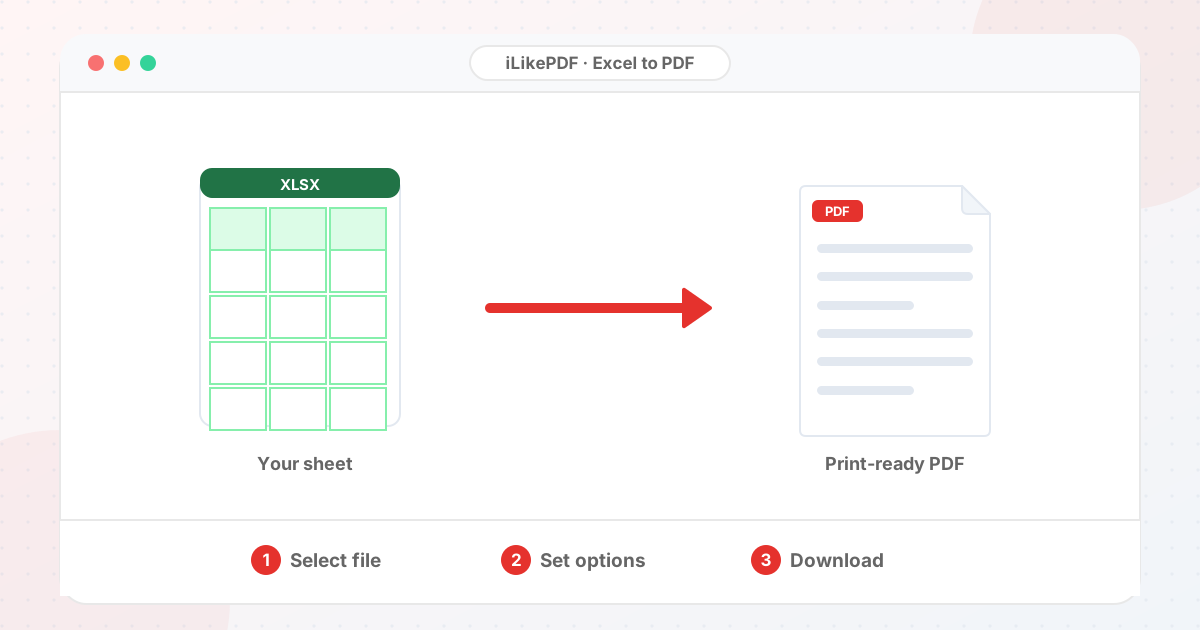
How to Use Excel to PDF
- In your spreadsheet application, save or export the sheet as CSV.
- Choose the CSV file and pick portrait or landscape.
- Select Convert Excel to PDF and check the result.
Before & After
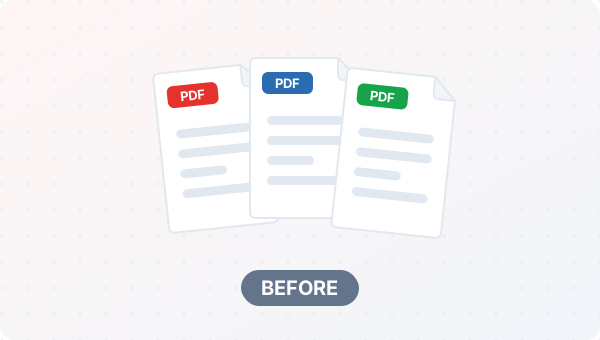
Before (Your original file(s))
- Files as you have them
- Nothing has been changed yet
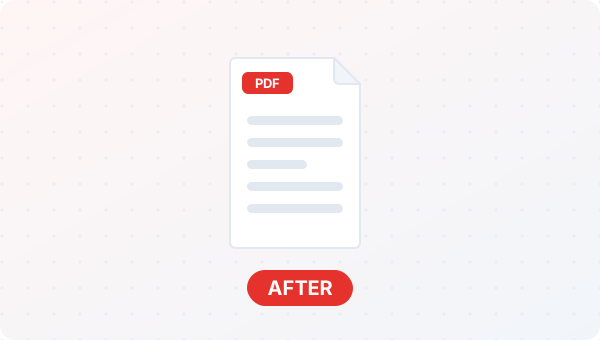
After (New result file)
- A new file downloads to your device
- Your original stays untouched
Conceptual illustration, not a screenshot.
Supported Input and Output
| Accepted input | Comma-separated text (.csv). Native .xlsx/.xls workbooks are not parsed by this version. |
| Orientation | Portrait or landscape. |
| Output | A PDF named after the file with a title line and one text row per line: first 8 columns, each cell cut at 18 characters. |
| File handling | The processing code runs in your browser. The page loads the pdf-lib library from the unpkg CDN when it opens; the tool code does not send your PDF to a server. |
Excel to PDF Features
- ✅ 100% free – no payment, no sign-up, no watermark.
- ✅ No software – excel to pdf online straight in your browser.
- ✅ Private by design – your file is processed on your device, not uploaded to our servers.
- ✅ Original kept – a new file is created.
- ✅ Works on mobile and desktop – Android, iPhone, Windows and Mac.
- ⚠️ Limited version – read the notice above the tool to see exactly what it does today.
Who Should Use Excel to PDF?
- Students – Move content between PDF, Word, Excel, PowerPoint and images for study work.
- Job Seekers – Turn a PDF into an editable file to update a resume or form.
- Professionals – Reuse tables and text from reports without retyping.
- Small Businesses – Prepare quotes and price lists in the format a customer needs.
- General Users – Open or share a document in a format your device supports.
Use Cases and Output Checks
Common uses
- Print a small table of values as a PDF page.
- Share a quick read-only copy of exported rows.
Check the output
- All required columns are within the first eight.
- Long values are not cut at 18 characters.
- Rows fit within the page width.
Limitations and Troubleshooting
- Workbook formatting, formulas, multiple sheets, colours and print areas are not applied.
- Wide sheets can run past the page edge.
- For a faithful spreadsheet layout, use the Print or Export to PDF command in your spreadsheet software.
Common problems
| Problem | What to try |
|---|---|
| Garbled output from an .xlsx | Export to CSV first, or use the spreadsheet application's own Export to PDF. |
| Text is cut off | Cells are limited to 18 characters in this version. |
Related Tools and Guides
Quick Summary
| Feature | Details |
|---|---|
| Tool name | Excel to PDF |
| Cost | 100% free |
| Software required | No |
| File upload | No – processed in your browser |
| Supported devices | Mobile & desktop |
| Best for | Print a small table of values as a PDF page |
Share This Tool
If you found this tool useful, share it with friends and classmates:
Disclaimer
Excel to PDF is for personal and educational use. Check your local laws and your organisation's rules before you process copyrighted or sensitive documents. Results depend on your file and browser, so always check the output before you use it. This version of the tool is limited; see the notice above the tool.
FAQs – Excel to PDF
1. Excel to PDF kaise use karein?
Apni file select karein, settings check karein aur “Convert Excel to PDF” button dabayein. Result neeche dikhega; phir Download par tap karein.
2. Kya Excel to PDF free hai?
Haan, iLikePDF ka Excel to PDF tool bilkul free hai. Koi payment ya signup nahi chahiye.
3. Kya main mobile se Excel to PDF use kar sakta hoon?
Haan, yeh tool mobile-friendly hai. Aap Android ya iPhone ke browser se bhi Excel to PDF use kar sakte hain.
4. Kya meri file upload hoti hai?
Nahi. Yeh tool aapke browser me chalta hai; aapki file iLikePDF ke server par upload nahi hoti. (Kuch features ek helper library CDN se load karte hain, lekin aapki file unme nahi jaati.)
5. What does Excel to PDF do?
Excel to PDF creates a fixed-page version of supported spreadsheet content. Use it when the required result matches this operation; keep a separate copy of the source.
6. How do I use Excel to PDF online?
Select the workbook, use the available conversion settings and save the PDF. Open the downloaded result before sending it to someone else.
7. Which source should I prepare for Excel to PDF?
Prepare a supported spreadsheet with the intended sheets and print area. Start with a file that opens correctly in its usual viewer. A renamed extension does not convert the underlying format.
8. What should I check in the Excel to PDF output?
Check clipped columns, sheet inclusion, page breaks, totals and readable text size. Keep the original until the result has passed these checks.
9. Why are columns cut off in my PDF?
The sheet may be wider than the selected page. Adjust orientation, print area or scaling in the source editor if the converter lacks those controls.
10. Will spreadsheet formulas work inside the PDF?
No. The PDF normally shows rendered values rather than interactive spreadsheet formulas. Keep the workbook for recalculation and analysis.
11. Can every workbook sheet be included?
That depends on the export implementation. Check the final page count and sheet content before assuming the whole workbook was converted.
12. Should I use portrait or landscape pages?
Landscape often fits wide tables better. Choose the orientation that keeps labels readable without shrinking text excessively.
13. Why are charts missing or different?
Not every conversion engine supports every chart or drawing feature. Compare against the source and export from the original editor if fidelity is inadequate.
14. Can hidden rows appear in the export?
Handling varies by engine. Inspect the output for unintended content and remove sensitive data from a sharing copy beforehand.
15. How can I repeat column headings on every page?
Set repeating print titles in the source application where supported. Check whether the converter respects them; otherwise use that application’s PDF export.
16. Will a PDF preserve spreadsheet filters?
It usually captures a visible or rendered state, not an interactive filtering interface. Apply the desired view before exporting and retain the workbook separately.
17. Why might Excel to PDF fail on a large file?
Wide sheets and large workbooks can produce many pages or strain browser memory. Close unnecessary tabs and test a smaller non-confidential sample to separate a file-specific problem from a browser problem.
18. When is Excel to PDF useful?
Send a readable budget, schedule or report to someone who only needs to view it. Confirm the recipient’s requirements before preparing the final version.
19. What can I do after using Excel to PDF?
Related next steps include Compress PDF, Merge PDF, PDF to Excel. Choose one only when you need that additional operation. Review the a PDF version of the spreadsheet before applying another change, and retain your source copy.