About HTML to PDF
HTML to PDF renders your HTML file the way a browser would and saves that rendered page as a PDF. Choose the .html file, wait for it to render, then check fonts, images and page breaks in the download.
iLikePDF's HTML to PDF tool lets you turn a saved webpage, an exported HTML report or an HTML email template into a fixed, shareable PDF – free and without any software. It is a good fit for saving an HTML invoice as a PDF, archiving a webpage you exported as .html, or sharing an HTML report with someone who just needs a PDF. You may also know it as html to pdf converter, html file to pdf online.
Everything happens in your browser: your file is not uploaded to our servers. It is private by design, quick to use and mobile-friendly. Scripts in the file are not executed for safety, so static HTML/CSS content works most reliably.
Full walkthrough: How to Convert an HTML File to PDF Without Losing the Layout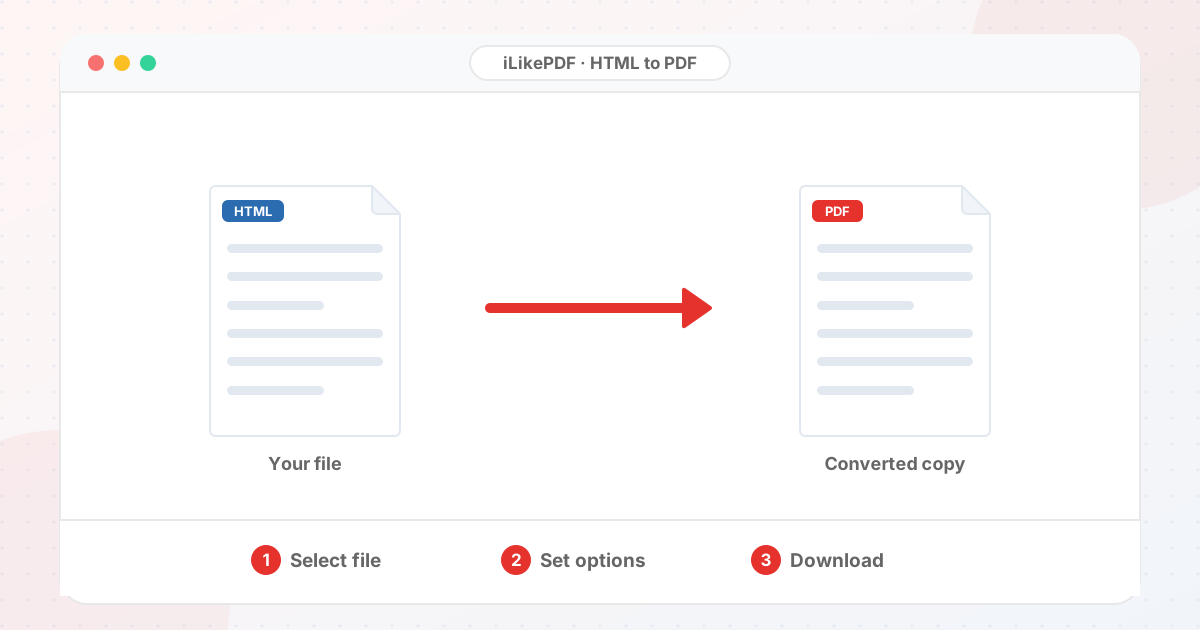
How to Use HTML to PDF
- Choose an .html or .htm file from your device.
- Select Convert to PDF and wait a moment while the page renders.
- Open the downloaded PDF and confirm the layout, text and images look right.
Before & After
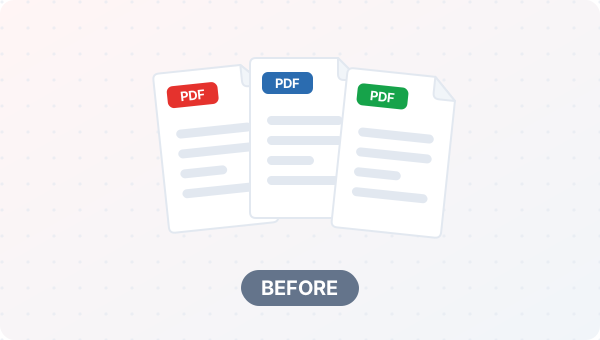
Before (Your original file(s))
- Files as you have them
- Nothing has been changed yet
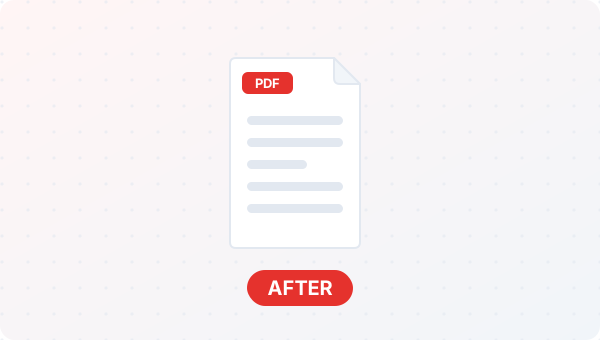
After (New result file)
- A new PDF downloads to your device
- Your original HTML file stays untouched
Conceptual illustration, not a screenshot.
Supported Input and Output
| Accepted input | A single .html or .htm file. Inline styles and a <style> tag inside the same file render normally. |
| Output | One A4 PDF, paginated automatically like a browser print preview, named after your original file. |
| Not executed | <script> tags are not run, so JavaScript-generated content will not appear. |
| File handling | Rendering happens in your browser using the html2pdf.js library loaded from a CDN when the page opens; your HTML file itself is never sent to a server. |
HTML to PDF Features
- ✅ 100% free – no payment, no sign-up, no watermark.
- ✅ No software – html to pdf online straight in your browser.
- ✅ Private by design – your file is rendered on your device, not uploaded to our servers.
- ✅ Original kept – a new PDF file is created.
- ✅ Works on mobile and desktop – Android, iPhone, Windows and Mac.
- ⚠️ Static content only – scripts are not executed; keep CSS inline or in a <style> tag for the most reliable result.
Who Should Use HTML to PDF?
- Developers – Turn an exported HTML report or invoice template into a shareable PDF.
- Students – Save a webpage you exported as .html for offline reading or submission.
- Small Businesses – Convert an HTML email template or quote into a PDF for a customer.
- Bloggers & Writers – Archive an article's HTML export as a fixed PDF copy.
- General Users – Turn any local .html file into a PDF without installing software.
Use Cases and Output Checks
Common uses
- Save an HTML invoice or report as a PDF.
- Archive a saved webpage in a fixed, shareable format.
Check the output
- Fonts, colors and images appear the way you expect.
- Page breaks land in sensible places, especially for tables.
- Any content built by JavaScript after load will be missing – add it to the static HTML instead.
Limitations and Troubleshooting
- Scripts are not executed, so dynamic/JavaScript-rendered content will not appear in the PDF.
- External stylesheets or fonts on slow or blocked domains may not load in time.
- Very large or complex pages can take longer to render.
Common problems
| Problem | What to try |
|---|---|
| Styles look wrong or missing | Move your CSS into a single <style> tag inside the same HTML file, instead of an external stylesheet. |
| Content is missing | If the content is added by JavaScript, add it directly to the HTML instead, since scripts do not run during conversion. |
| Conversion is slow | Large images and complex CSS take longer to render; try a smaller test file first. |
Related Tools and Guides
More Guides for This Topic
Quick Summary
| Feature | Details |
|---|---|
| Tool name | HTML to PDF |
| Cost | 100% free |
| Software required | No |
| File upload | No – processed in your browser |
| Supported devices | Mobile & desktop |
| Best for | Turning a saved HTML file into a shareable PDF |
Share This Tool
If you found this tool useful, share it with friends and classmates:
Disclaimer
HTML to PDF is for personal and educational use. Check your local laws and your organisation's rules before you process copyrighted or sensitive documents. Results depend on your file and browser, so always check the output before you use it.
FAQs – HTML to PDF
1. HTML to PDF kaise use karein?
Apni .html file select karein aur "Convert to PDF" button dabayein. Tool aapke browser me hi page ko render karke PDF bana deta hai; phir Download ho jaata hai.
2. Kya HTML to PDF free hai?
Haan, iLikePDF ka HTML to PDF tool bilkul free hai. Koi payment ya signup nahi chahiye.
3. Kya meri file upload hoti hai?
Nahi. Aapki HTML file aapke browser me hi render aur convert hoti hai; kisi server par upload nahi hoti.
4. Kya webpage ka URL seedha convert kar sakte hain?
Yeh version ek local .html file leta hai. Kisi live webpage ko PDF banane ke liye, browser ka apna "Print → Save as PDF" option use karein, ya us page ko "Save As" karke .html file banayein aur yahan upload karein.
5. What does HTML to PDF do?
It renders your HTML file the way a browser would and saves that rendered page as a PDF, so the layout, text and basic styling carry over.
6. How do I use HTML to PDF online?
Choose an .html file from your device, wait a moment while it renders, and the PDF downloads automatically. Open it to confirm the layout looks right.
7. Which file should I prepare for HTML to PDF?
A standard .html or .htm file with its CSS either inline or inside a <style> tag in the same file works best. External stylesheets on other domains may not load in time.
8. What should I check in the HTML to PDF output?
Check that fonts, colors, images and page breaks look right. Very wide tables or fixed-position elements can sometimes get cut off across pages.
9. Why did the layout shift during conversion?
The conversion renders the page at a fixed width for a print-style PDF. Responsive layouts built for a different screen width may reflow slightly.
10. Does HTML to PDF keep my links clickable?
Plain text links usually remain visible but PDFs generated this way are primarily visual; test a link in the saved file before relying on it.
11. Can I convert a page with images?
Yes, as long as the images are reachable (embedded as base64 or hosted with public access) they will render in the PDF.
12. Will JavaScript-generated content appear in the PDF?
Content that JavaScript needs time to build after the page loads may not appear, since scripts are not executed for safety. Static HTML/CSS content works most reliably.
13. Can conversion preserve custom fonts?
Web fonts loaded from a <style> or <link> in the file usually render; a fallback system font is used if a font cannot be reached in time.
14. Why is the PDF split across multiple pages?
Long HTML content is paginated automatically to A4-sized pages, the same way a browser print preview breaks a long page.
15. Can I password-protect the converted file?
Use a separate Protect PDF tool after reviewing this output, if you need a password on the final file.
16. Why might HTML to PDF fail on a large file?
Very large pages, many high-resolution images or complex CSS can slow down rendering. Try a smaller test file to confirm the tool is working, then retry the larger one.
17. When is HTML to PDF useful?
Use it to turn an emailed HTML report, an exported HTML invoice, or a saved webpage into a fixed, shareable PDF.
18. What can I do after using HTML to PDF?
Related next steps include Merge PDF, Compress PDF, and Sign PDF. Review the PDF rendition of your HTML file before applying another change, and keep your source HTML file.