Photo Blemish Remover: Step-by-Step Guide
To use Photo Blemish Remover, open the tool, choose your file, and let it process in your browser — nothing is uploaded. Smooth spots, blemishes or areas by painting over them with a soft brush. The result downloads straight to your device, free and without sign-up.
Photo Blemish Remover improves a photo's sharpness, size or appearance — enlarging it, smoothing blemishes or lifting a dull image — using in-browser processing so nothing is uploaded.
What Is Photo Blemish Remover?
Photo Blemish Remover improves a photo's sharpness, size or appearance — enlarging it, smoothing blemishes or lifting a dull image — using in-browser processing so nothing is uploaded.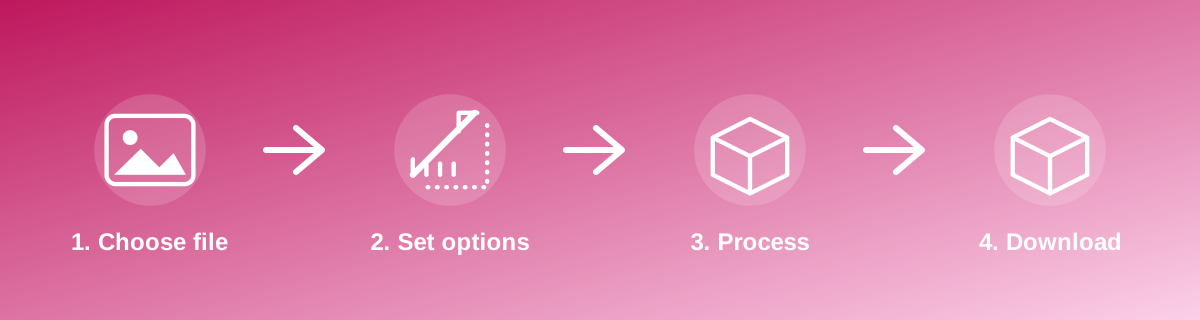
How to Use It — Step by Step
- Open Photo Blemish Remover and upload your photo.
- Choose the enhancement or retouching setting.
- Compare the before and after at full size.
- Download the improved photo.
Why Use This Tool?
- Improves an old, small or slightly blurry photo without expert editing skills.
- Enlarges an image for printing or display without a desktop upscaling tool.
- Runs on your device — the photo isn't sent anywhere for processing.
- Free to try different settings until the result looks right.
Supported File Formats
Photo Blemish Remover accepts: AVIF, BMP, GIF, JFIF, JPEG, JPG, PNG, WEBP. Always confirm the accepted formats on the tool page itself if you are working with an unusual file type.
Quality, Resolution and File Size Considerations
Enhancement tools work within the limits of the source photo — they can sharpen, brighten and smooth what's already there, but they cannot invent detail the camera never captured. A very blurry or very low-resolution source will improve only up to a point; the closer the original is to sharp and well-lit, the better an enhancement tool's result will look.
Is It Safe and Private?
Photo Blemish Remover runs its processing in your browser using your device's own resources. The tool code does not make an upload request for the file you select, so your file is not sent to a server for this task. Keep in mind that no tool can guarantee what happens after you download and share a file elsewhere — that depends on where you send it next.
Best Practices
- Start from the best-quality version of the photo you have access to.
- Compare the result with the original at full zoom, since enhancement effects can look different at thumbnail size.
- Use a lighter setting first, then increase it if the result still looks flat.
- Keep the original photo in case a different level of enhancement is needed later.
Common Problems and Fixes
The enlarged photo looks soft Upscaling stretches existing pixels; a source photo with low original resolution will not become sharp simply by making it bigger.
Skin looks unnaturally smooth Reduce the retouching or smoothing strength — a lighter setting usually looks more natural than the maximum available.
The result doesn't look different from the original Try a stronger setting, or confirm the photo actually needed the specific correction the tool applies (for example, brightness versus sharpness).
Frequently Asked Questions
Yes, this tool is free with no daily limit and no watermark added to the result.
No sign-up is required. Open the tool page and use it directly.
No — the tool processes your file in your own browser, so it is not uploaded anywhere for this task.
Yes, the tool page is mobile-friendly and works in a phone browser as well as on a desktop.
No tool can fully restore detail that the camera never captured; results improve sharpness and clarity but have limits.
Some enhancement tools adjust brightness and contrast slightly as part of the improvement; check the result against the original if colour accuracy matters.
Related Tools
Key Takeaways
- Photo Blemish Remover runs in your browser — free, no sign-up, and your file is not uploaded for this task.
- Follow the four steps above and check the result before you rely on it for a form, portal or upload.
- Keep your original file, since results from lossy or destructive edits cannot always be undone.
Reviewed and updated 25 September 2026 by the iLikePDF Editorial team. This guide describes how the Photo Blemish Remover tool on iLikePDF works; always verify results against the specific requirements of the form, portal or platform you are submitting to.