PNG to Text Converter: Step-by-Step Guide
To use PNG to Text Converter, open the tool, choose your file, and let it process in your browser — nothing is uploaded. Read the text in a PNG picture and copy it or download it as a text file. The result downloads straight to your device, free and without sign-up.
PNG to Text Converter recognises text inside a picture (OCR) or turns typed text into a handwriting-style image or document, running the recognition or rendering directly in your browser.
What Is PNG to Text Converter?
PNG to Text Converter recognises text inside a picture (OCR) or turns typed text into a handwriting-style image or document, running the recognition or rendering directly in your browser.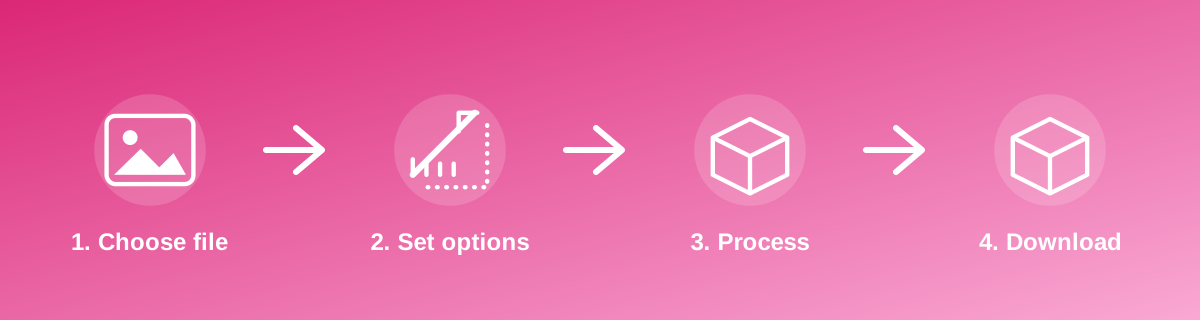
How to Use It — Step by Step
- Open PNG to Text Converter and upload the image or type your text.
- Let the tool process it in your browser.
- Review the output against the source image.
- Copy or download the result.
Why Use This Tool?
- Extracts readable, editable text from a photo or scan without retyping it manually.
- Converts a picture of a document into an editable Word-compatible file.
- Processing runs on your device — the image isn't sent to an external server for recognition.
- Free to use with no daily limit.
Supported File Formats
PNG to Text Converter accepts: AVIF, BMP, GIF, JFIF, JPEG, JPG, PNG, WEBP. Always confirm the accepted formats on the tool page itself if you are working with an unusual file type.
Quality, Resolution and File Size Considerations
OCR accuracy depends heavily on the source image: clear, well-lit, high-resolution scans with plain fonts recognise far better than blurry photos, handwriting or low-contrast text. Always proofread the recognised text against the original image — automatic recognition can misread similar-looking characters, especially in small or stylised fonts.
Is It Safe and Private?
PNG to Text Converter runs its processing in your browser using your device's own resources. The tool code does not make an upload request for the file you select, so your file is not sent to a server for this task. Keep in mind that no tool can guarantee what happens after you download and share a file elsewhere — that depends on where you send it next.
Best Practices
- Use a sharp, well-lit, high-resolution photo or scan for the best recognition accuracy.
- Straighten tilted or rotated photos before running text recognition.
- Always proofread the extracted text against the source image before using it.
- Avoid very low-contrast text (light grey on white, for example), which is the hardest for OCR to read correctly.
Common Problems and Fixes
The recognised text has errors OCR is not perfect, especially with unusual fonts, handwriting or low image quality. Proofread and correct the output against the original image.
Some lines are missing from the result A tilted photo, a shadow or low resolution can cause the recognition engine to skip or merge lines. Retake the photo straight-on with even lighting.
The layout doesn't match the original Recognition tools focus on the text itself; complex layouts, tables and columns may not be reproduced exactly and might need manual formatting afterwards.
Frequently Asked Questions
Yes, this tool is free with no daily limit and no watermark added to the result.
No sign-up is required. Open the tool page and use it directly.
No — the tool processes your file in your own browser, so it is not uploaded anywhere for this task.
Yes, the tool page is mobile-friendly and works in a phone browser as well as on a desktop.
PNG to Text Converter is built specifically to reach this target — check the on-page result against the PNG → TEXT figure before you rely on it.
Recognition accuracy is noticeably lower for handwriting than for printed text; results should always be proofread carefully.
Support varies by tool; check the tool page for the languages it currently recognises before relying on it for a non-English document.
Related Tools
Key Takeaways
- PNG to Text Converter runs in your browser — free, no sign-up, and your file is not uploaded for this task.
- Follow the four steps above and check the result before you rely on it for a form, portal or upload.
- Keep your original file, since results from lossy or destructive edits cannot always be undone.
Reviewed and updated 25 September 2026 by the iLikePDF Editorial team. This guide describes how the PNG to Text Converter tool on iLikePDF works; always verify results against the specific requirements of the form, portal or platform you are submitting to.