Convert Image DPI to 600: Step-by-Step Guide
To use Convert Image DPI to 600, open the tool, choose your file, and let it process in your browser — nothing is uploaded. Change the DPI of a JPG or PNG to 600 or any value, without losing quality. The result downloads straight to your device, free and without sign-up.
Convert Image DPI to 600 reads or changes what's hidden inside a photo file — such as camera metadata, DPI setting or exact pixel colours — using in-browser processing that never uploads your file.
What Is Convert Image DPI to 600?
Convert Image DPI to 600 reads or changes what's hidden inside a photo file — such as camera metadata, DPI setting or exact pixel colours — using in-browser processing that never uploads your file.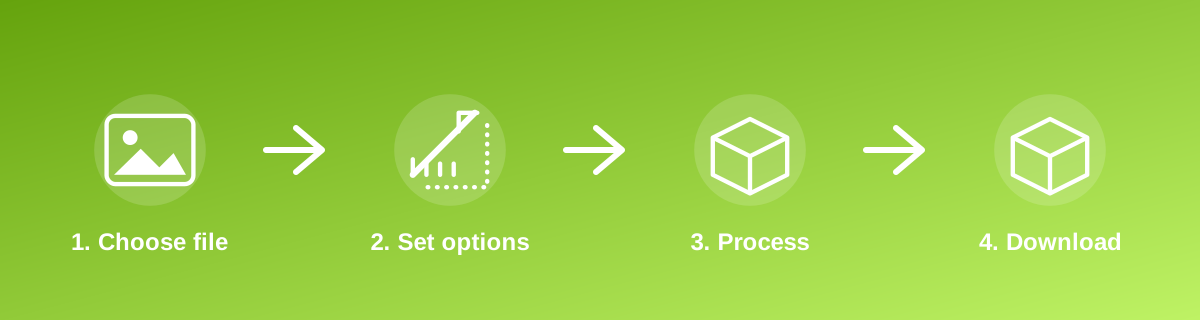
How to Use It — Step by Step
- Open Convert Image DPI to 600 and upload your image.
- View or set the metadata, DPI or colour value you need.
- Confirm the change in the preview.
- Download the updated file or copy the value you needed.
Why Use This Tool?
- Checks or removes hidden metadata (like location or camera details) before sharing a photo.
- Sets a specific DPI value some print services or forms require.
- Picks an exact colour code from any pixel in an image for design work.
- Runs locally, keeping potentially sensitive metadata off any server.
Supported File Formats
Convert Image DPI to 600 accepts: AVIF, BMP, GIF, JFIF, JPEG, JPG, PNG, WEBP. Always confirm the accepted formats on the tool page itself if you are working with an unusual file type.
Quality, Resolution and File Size Considerations
Metadata and DPI changes do not alter the visible pixels of a photo, so there's no visual quality trade-off — DPI is a printing instruction, not a change to on-screen resolution. Colour picking simply reads existing pixel values; the accuracy depends on your screen's colour calibration, which can vary between devices.
Is It Safe and Private?
Convert Image DPI to 600 runs its processing in your browser using your device's own resources. The tool code does not make an upload request for the file you select, so your file is not sent to a server for this task. Keep in mind that no tool can guarantee what happens after you download and share a file elsewhere — that depends on where you send it next.
Best Practices
- Check what metadata a photo contains before sharing it publicly, especially location data from phone cameras.
- Remember that changing DPI does not change the pixel dimensions or on-screen appearance of an image.
- For accurate colour picking, work from an image viewed at 100% zoom, not a scaled-down preview.
- Keep a metadata-intact original if you might need the information later (for photo organisation, for example).
Common Problems and Fixes
The photo still looks the same size after changing DPI That's expected — DPI affects how an image is interpreted for printing, not its pixel dimensions or on-screen size.
Removed metadata came back after re-editing Some editing apps re-add basic metadata when saving; re-check and strip metadata again on the final exported file before sharing.
The picked colour looks slightly different elsewhere Screen colour calibration varies between devices; the picked colour code is accurate to the image data, but on-screen appearance can differ.
Frequently Asked Questions
Yes, this tool is free with no daily limit and no watermark added to the result.
No sign-up is required. Open the tool page and use it directly.
No — the tool processes your file in your own browser, so it is not uploaded anywhere for this task.
Yes, the tool page is mobile-friendly and works in a phone browser as well as on a desktop.
No — metadata is separate information stored alongside the pixels; removing it does not change how the photo looks.
A metadata viewer will show GPS data if the photo contains it; removing metadata is recommended before sharing photos publicly.
Related Tools
Key Takeaways
- Convert Image DPI to 600 runs in your browser — free, no sign-up, and your file is not uploaded for this task.
- Follow the four steps above and check the result before you rely on it for a form, portal or upload.
- Keep your original file, since results from lossy or destructive edits cannot always be undone.
Reviewed and updated 25 September 2026 by the iLikePDF Editorial team. This guide describes how the Convert Image DPI to 600 tool on iLikePDF works; always verify results against the specific requirements of the form, portal or platform you are submitting to.