Compress Image to 200 KB: Step-by-Step Guide
To use Compress Image to 200 KB, open the tool, choose your file, and let it process in your browser — nothing is uploaded. Reduce a photo to 200 KB or less in your browser. Choose the image, press one button and… The result downloads straight to your device, free and without sign-up.
Compress Image to 200 KB is a browser-based tool that re-saves a photo at a smaller file size, so it fits the KB or MB limit that a form, portal or upload field asks for. It works by redrawing the image on a canvas and re-encoding it as a JPEG at a quality level chosen to land close to the target you need.
What Is Compress Image to 200 KB?
Compress Image to 200 KB is a browser-based tool that re-saves a photo at a smaller file size, so it fits the KB or MB limit that a form, portal or upload field asks for. It works by redrawing the image on a canvas and re-encoding it as a JPEG at a quality level chosen to land close to the target you need.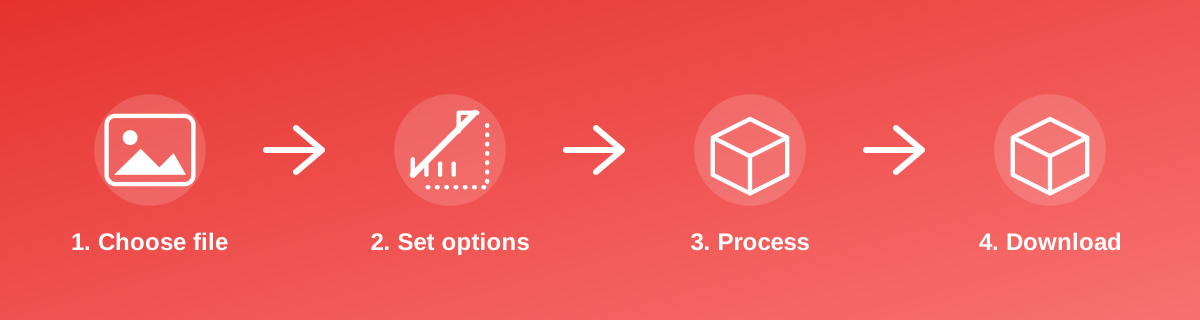
How to Use It — Step by Step
- Open Compress Image to 200 KB and select the photo from your device.
- Let the tool process the image — it runs locally in your browser.
- Check the reported output size against the limit you were given.
- Download the result and rename it if the destination form expects a specific filename.
Why Use This Tool?
- Gets a photo under a specific KB or MB cap without guessing at a compression slider.
- Nothing about your image leaves your device during processing.
- No sign-up screen, no watermark, and no cap on repeat use.
- Just as usable from a phone's browser as from a laptop.
Supported File Formats
Compress Image to 200 KB accepts: AVIF, BMP, GIF, JFIF, JPEG, JPG, PNG, WEBP. Always confirm the accepted formats on the tool page itself if you are working with an unusual file type.
Quality, Resolution and File Size Considerations
Compressing to a small KB target always trades away some detail. The tool aims for the lightest quality setting that still gets under the limit, but very small targets (5–20 KB) can visibly soften fine text, sharp edges and skin tones. If the result looks too rough, try starting from a smaller source image (lower pixel dimensions) rather than compressing a huge photo very hard — a right-sized image compresses more gently.
Is It Safe and Private?
Compress Image to 200 KB runs its processing in your browser using your device's own resources. The tool code does not make an upload request for the file you select, so your file is not sent to a server for this task. Keep in mind that no tool can guarantee what happens after you download and share a file elsewhere — that depends on where you send it next.
Best Practices
- Work from the source photo, not a copy that's already been through another compressor.
- For very tight limits (below 20 KB), reduce pixel dimensions first and compress second.
- Compare the resulting file size against the portal's stated cap before you upload it anywhere.
- Hold onto the uncompressed original — you may need a different target size for another form later.
Common Problems and Fixes
The output is still above the limit Very detailed or large photos may not reach a very small target through compression alone. Reduce the pixel dimensions first with a resize tool, then compress again.
The photo looks blurry or blocky That is expected at very small KB targets. Use a smaller source image so less compression is needed to reach the same file size.
The file format changed The tool saves the result as JPEG, since JPEG compresses photographs far better than PNG. If you need to keep transparency, this tool is not the right one.
Frequently Asked Questions
Yes, this tool is free with no daily limit and no watermark added to the result.
No sign-up is required. Open the tool page and use it directly.
No — the tool processes your file in your own browser, so it is not uploaded anywhere for this task.
Yes, the tool page is mobile-friendly and works in a phone browser as well as on a desktop.
Compress Image to 200 KB is built specifically to reach this target — check the on-page result against the 200 KB figure before you rely on it.
No, the tool only changes the file size (bytes), not the width and height in pixels. Use a resize tool if you also need different dimensions.
Yes — always compress again from the original file rather than from an already-compressed copy, since repeated compression loses more detail each time.
Related Tools
Key Takeaways
- Compress Image to 200 KB runs in your browser — free, no sign-up, and your file is not uploaded for this task.
- Follow the four steps above and check the result before you rely on it for a form, portal or upload.
- Keep your original file, since results from lossy or destructive edits cannot always be undone.
Reviewed and updated 25 September 2026 by the iLikePDF Editorial team. This guide describes how the Compress Image to 200 KB tool on iLikePDF works; always verify results against the specific requirements of the form, portal or platform you are submitting to.