Instagram Grid Maker: Step-by-Step Guide
To use Instagram Grid Maker, open the tool, choose your file, and let it process in your browser — nothing is uploaded. Choose one picture, pick the number of rows (columns are fixed at 3) and press the button. The result downloads straight to your device, free and without sign-up.
Instagram Grid Maker fits a picture to the exact dimensions a social platform expects — Instagram, WhatsApp, YouTube or similar — without cropping off the parts you want to keep, processed in your browser.
What Is Instagram Grid Maker?
Instagram Grid Maker fits a picture to the exact dimensions a social platform expects — Instagram, WhatsApp, YouTube or similar — without cropping off the parts you want to keep, processed in your browser.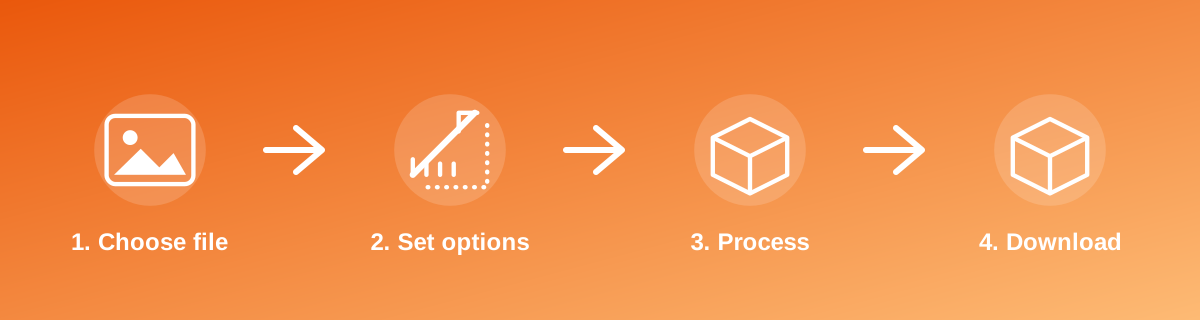
How to Use It — Step by Step
- Open Instagram Grid Maker and upload your photo.
- Let the tool fit it to the target platform size.
- Preview how it will look in the intended placement.
- Download the result ready to upload to the platform.
Why Use This Tool?
- Avoids a platform's automatic crop cutting off part of your photo.
- Matches the exact banner, profile or post dimensions each platform recommends.
- No desktop app needed — works directly from your phone or computer browser.
- Free to use for as many photos as you need.
Supported File Formats
Instagram Grid Maker accepts: AVIF, BMP, GIF, JFIF, JPEG, JPG, PNG, WEBP. Always confirm the accepted formats on the tool page itself if you are working with an unusual file type.
Quality, Resolution and File Size Considerations
Fitting a photo to a specific platform size sometimes means adding plain background bars (letterboxing) rather than cropping, to avoid cutting off content — check the preview to see which approach the tool uses and whether it suits your photo. A source photo with a similar aspect ratio to the target size will need the least adjustment and keep the most original detail.
Is It Safe and Private?
Instagram Grid Maker runs its processing in your browser using your device's own resources. The tool code does not make an upload request for the file you select, so your file is not sent to a server for this task. Keep in mind that no tool can guarantee what happens after you download and share a file elsewhere — that depends on where you send it next.
Best Practices
- Check the platform's current recommended size, since social platforms occasionally change their dimensions.
- Preview how the photo will actually appear (feed, profile circle, banner) before finalising.
- Start from a high-resolution photo so the platform's own compression doesn't add further softness on top.
- Keep the original photo in case you need a different platform's dimensions later.
Common Problems and Fixes
Part of the photo got cropped on the platform Platforms sometimes still apply their own crop after upload; check the exact recommended dimensions and preview shape for that specific placement (feed post, story, profile).
The image has unexpected bars around it Some tools add background bars rather than crop, to preserve the whole photo; adjust the source image's framing if you'd prefer a full-bleed crop instead.
The result looks over-compressed after uploading The platform applies its own compression on top of yours; start from the highest-quality version you can to reduce the combined effect.
Frequently Asked Questions
Yes, this tool is free with no daily limit and no watermark added to the result.
No sign-up is required. Open the tool page and use it directly.
No — the tool processes your file in your own browser, so it is not uploaded anywhere for this task.
Yes, the tool page is mobile-friendly and works in a phone browser as well as on a desktop.
No — platforms can apply their own display crop in certain placements; matching their recommended size reduces but doesn't always eliminate this.
Yes, but each platform has different recommended sizes, so process the source photo separately for each target size.
Related Tools
Key Takeaways
- Instagram Grid Maker runs in your browser — free, no sign-up, and your file is not uploaded for this task.
- Follow the four steps above and check the result before you rely on it for a form, portal or upload.
- Keep your original file, since results from lossy or destructive edits cannot always be undone.
Reviewed and updated 25 September 2026 by the iLikePDF Editorial team. This guide describes how the Instagram Grid Maker tool on iLikePDF works; always verify results against the specific requirements of the form, portal or platform you are submitting to.