Use a preset page when your form names a size (for example Resize Image to 35 mm × 45 mm).
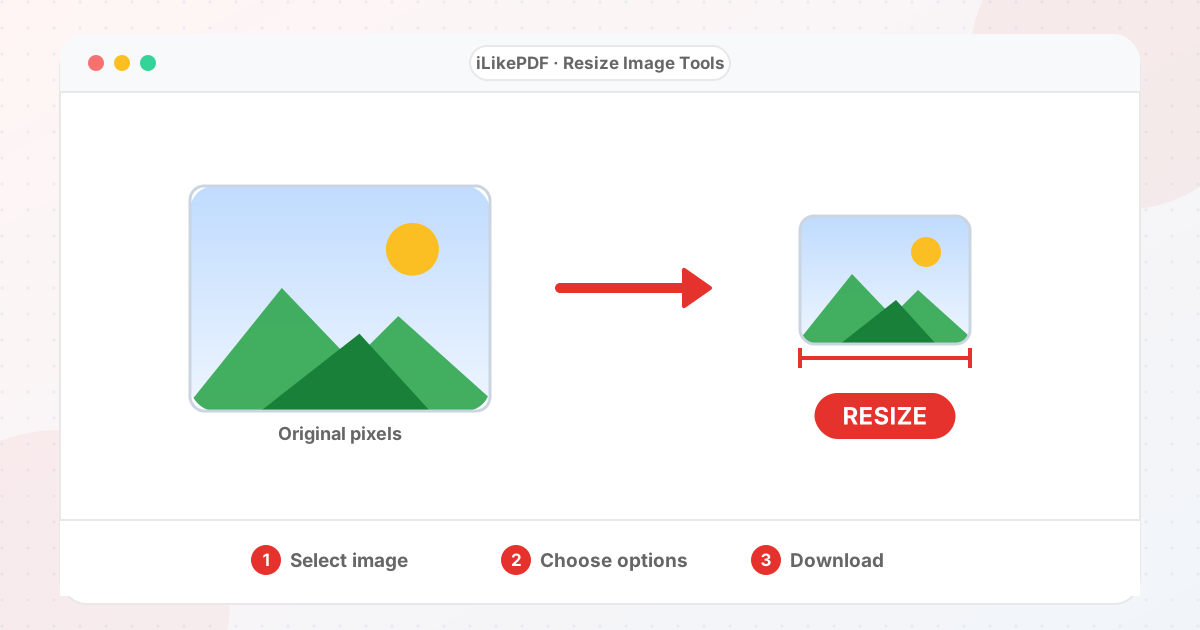
Forms, printers and apps state sizes in different units. Pixels describe how many dots a picture has; centimetres, millimetres and inches describe printed size and need a DPI (dots per inch) to convert. At 300 DPI, 3.5 × 4.5 cm is about 413 × 531 pixels. The tools do that conversion for you and save the DPI in the file.
Each tool lets you choose how the picture fits: fill and crop keeps proportions, fit inside adds background, and stretch forces the exact size.
All Resize Tools
How to Choose the Right Tool
- Pick a preset page if you know the exact size you need.
- Use the pixel, cm, mm or inch tools for your own numbers.
- Use Change Aspect Ratio to fit a picture into a square or story shape without cropping.
- Use Reduce Image Resolution to make a large picture lighter by percentage.
- Use the Bulk Image Resizer for many pictures at once.
Before You Upload Anything
- Keep your original file. Every tool saves a new copy.
- Compare the result with the size, format and dimensions your form or app states.
- Open the downloaded file once before you upload it.
Other Image Tool Groups
Guides
Share This Page
If you found this tool useful, share it with friends and classmates:
FAQs – Resize Image Tools
1. Resize Image Tools kaise use karein?
Apni file select karein, settings check karein aur “Open tool” button dabayein. Result neeche dikhega; phir Download par tap karein.
2. Kya Resize Image Tools free hai?
Haan, iLikePDF ka Resize Image Tools tool bilkul free hai. Koi payment ya signup nahi chahiye.
3. Kya main mobile se Resize Image Tools use kar sakta hoon?
Haan, yeh tool mobile-friendly hai. Aap Android ya iPhone ke browser se bhi Resize Image Tools use kar sakte hain.
4. Kya meri file upload hoti hai?
Nahi. Yeh tool aapke browser me chalta hai; aapki file iLikePDF ke server par upload nahi hoti. (Kuch features ek helper library CDN se load karte hain, lekin aapki file unme nahi jaati.)
5. What is the difference between pixels and centimetres?
Pixels count the dots in a picture. Centimetres describe printed size and depend on the DPI. At 300 DPI, 1 cm is about 118 pixels.
6. Will resizing distort my photo?
Not with fill-and-crop or fit-inside. Only the stretch option changes proportions.
7. Can I resize and set a KB limit together?
Yes. The preset tools include an optional maximum file size in KB.
8. Which tool should I choose?
Start here: Pick a preset page if you know the exact size you need.
9. Do the tools reduce picture quality?
Only when your target needs it, and you can see the result before you download. Your original file is never changed.
10. Which file types can I use?
Most tools accept JPG, PNG, WebP, GIF, BMP and AVIF pictures that your browser can open. PDF tools accept PDF files.