About Zoom Out Image
Choose your picture, drag the slider to make it smaller inside its frame and choose a colour, blurred or transparent background. The frame keeps the original size, so the picture looks zoomed out.
iLikePDF's Zoom Out Image tool lets you choose your picture, drag the slider to make it smaller inside its frame and choose a colour, blurred or transparent background – free and without any software. It is a good fit for fitting a picture into a circle or story without cropping, adding breathing room around a subject and passport-style framing with extra margin. You may also know it as zoom out image online, zoom out image free.
Everything happens in your browser: your files are not uploaded to our servers. It is private by design, quick to use and mobile-friendly.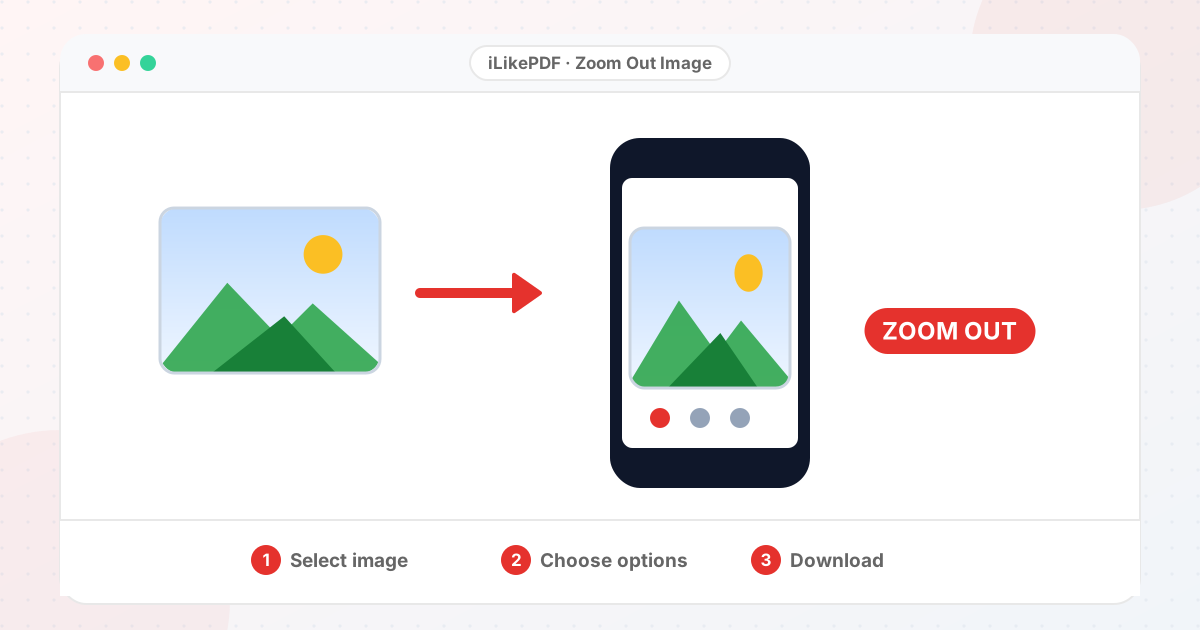
How to Use Zoom Out Image
- Select your picture.
- Adjust the settings shown below the picture.
- Press Zoom out image.
- Download the result (a ZIP when several files are created).
Before & After
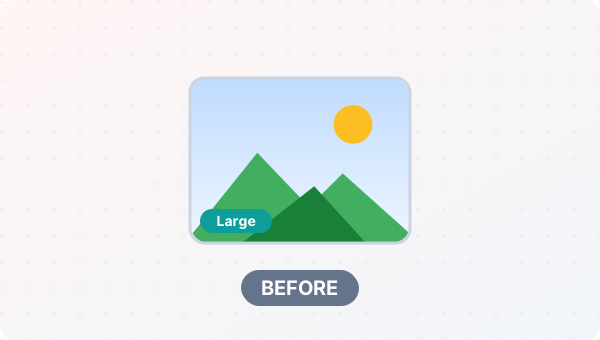
Before (Photo in its original size)
- Camera size or odd shape
- Does not fit the frame
- Too big to upload
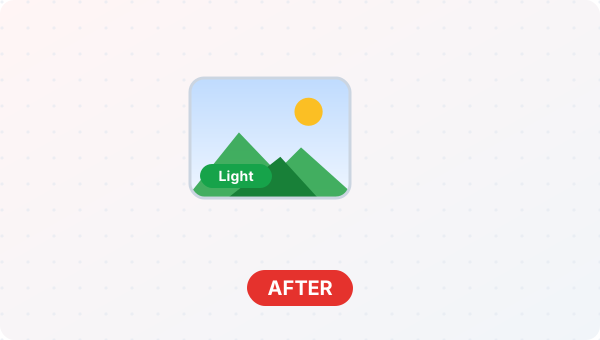
After (Photo in the size you set)
- Exact width and height
- Proportions kept unless you stretch
- Ready to use
Conceptual illustration, not a screenshot.
Supported Input and Output
| Input | JPG, PNG, WebP, GIF, BMP or AVIF pictures |
| Output | JPG or PNG |
| Frame size | Same as the original |
| Picture size | 10% to 95% of the frame |
| Background | Colour, blurred copy or transparent |
Zoom Out Image Features
- ✅ 100% free – no payment, no sign-up, no watermark.
- ✅ No software – zoom out image online straight in your browser.
- ✅ Private by design – your file is processed on your device, not uploaded to our servers.
- ✅ Exact sizes – pixels, centimetres, millimetres or inches.
- ✅ Works on mobile and desktop – Android, iPhone, Windows and Mac.
Who Should Use Zoom Out Image?
- Students – Prepare project pictures and ID photos in the exact size a portal asks for.
- Job Seekers – Get a photo or signature to the pixel or centimetre size an application requires.
- Professionals – Prepare profile pictures, banners and thumbnails for company pages.
- Small Businesses – Make product photos the same size for a shop, catalogue or social page.
- General Users – Fit a picture to a frame, a print size or a social media post.
Tips for Best Results
- Use the largest, sharpest original you have.
- Keep faces and text away from the edges in case the app crops them.
- Sizes and display rules change, so check the current guidance in the app.
Limits and Things to Know
- Apps recompress pictures after upload, so small differences are normal.
- Platform size rules change over time; treat these values as a good starting point.
Related Tools and Guides
Quick Summary
| Feature | Details |
|---|---|
| Tool name | Zoom Out Image |
| Cost | 100% free |
| Software required | No |
| File upload | No – processed in your browser |
| Supported devices | Mobile & desktop |
| Best for | Fitting a picture into a circle or story without cropping |
Share This Tool
If you found this tool useful, share it with friends and classmates:
Disclaimer
Zoom Out Image is for personal and educational use. Check your local laws and your organisation's rules before you process copyrighted or sensitive documents. Results depend on your file and browser, so always check the output before you use it.
FAQs – Zoom Out Image
1. Zoom Out Image kaise use karein?
Apni file select karein, settings check karein aur “Zoom out image” button dabayein. Result neeche dikhega; phir Download par tap karein.
2. Kya Zoom Out Image free hai?
Haan, iLikePDF ka Zoom Out Image tool bilkul free hai. Koi payment ya signup nahi chahiye.
3. Kya main mobile se Zoom Out Image use kar sakta hoon?
Haan, yeh tool mobile-friendly hai. Aap Android ya iPhone ke browser se bhi Zoom Out Image use kar sakte hain.
4. Kya meri file upload hoti hai?
Nahi. Yeh tool aapke browser me chalta hai; aapki file iLikePDF ke server par upload nahi hoti. (Kuch features ek helper library CDN se load karte hain, lekin aapki file unme nahi jaati.)
5. What does zoom out do?
It shrinks the picture inside a frame of the same size and fills the extra space, so more of the surroundings appear around the subject.
6. Can I keep a transparent background?
Yes. Choose Transparent and save as PNG.
7. How to use zoom out image?
Use Zoom Out Image on this page. It runs in a normal browser on computers and phones, with no software and no account.
8. What is the best way to zoom out an image?
The quickest way is Zoom Out Image on this page. Choose your file, check the settings and press the button. Nothing needs to be installed.
9. Do I need to install software to zoom out an image?
No. The tool runs inside your browser, so there is nothing to download or install.
10. Which file types work with Zoom Out Image?
It works with JPG, PNG, WebP, GIF, BMP and AVIF files that your browser can open.