About Flatten PDF
Flatten PDF turns supported interactive elements into fixed page appearances. Select the filled PDF, run flattening and reopen the downloaded copy.
iLikePDF's Flatten PDF tool lets you turn filled form fields into fixed page content – free and without any software. It is a good fit for send a completed form that cannot be changed by accident, archive a filled form and fix appearance before printing or uploading. You may also know it as flatten pdf online, free flatten pdf.
Everything happens in your browser: your files are not uploaded to our servers. It is private by design, quick to use and mobile-friendly.
Full walkthrough: What Does Flattening a PDF Do? Forms, Comments and the Redaction Myth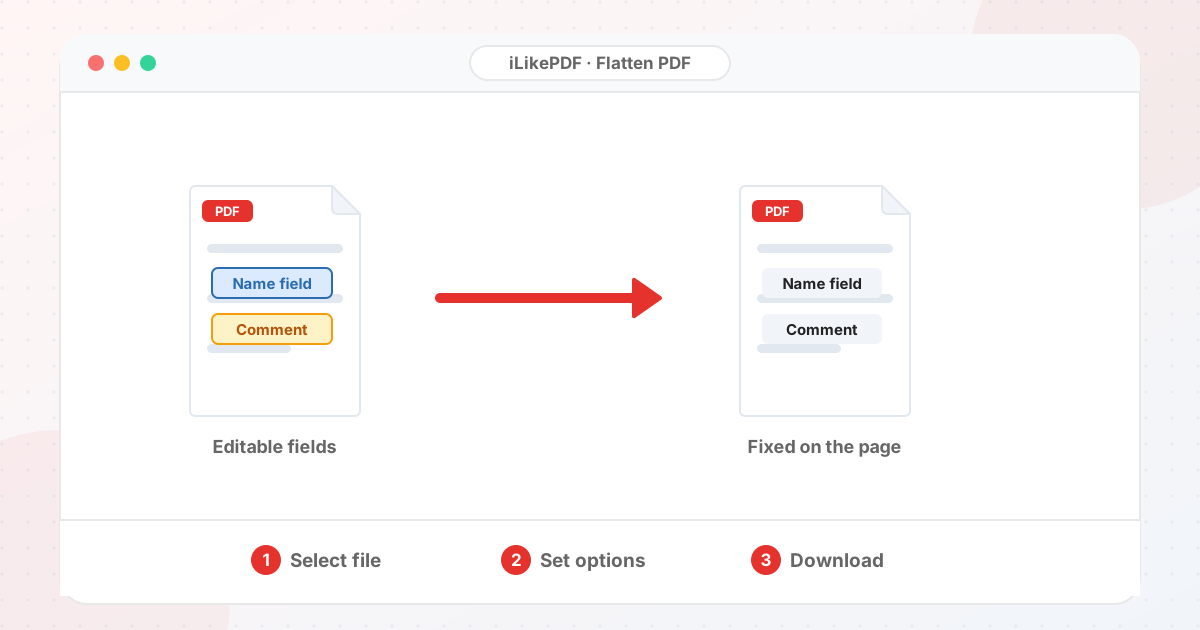
How to Use Flatten PDF
- Fill and check the form in your usual PDF viewer.
- Choose the PDF and select Flatten PDF Document.
- Open the result and confirm every entered value is still visible.
- Keep the editable original in a safe place.
Before & After
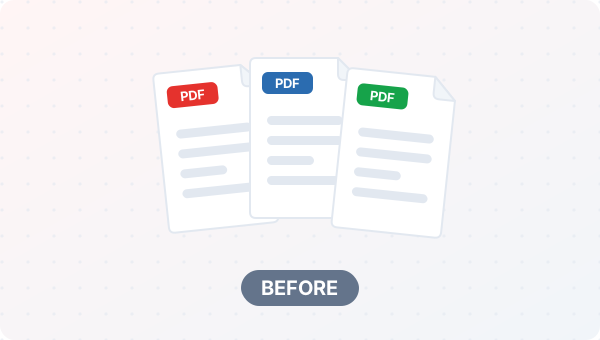
Before (Your original file(s))
- Files as you have them
- Nothing has been changed yet
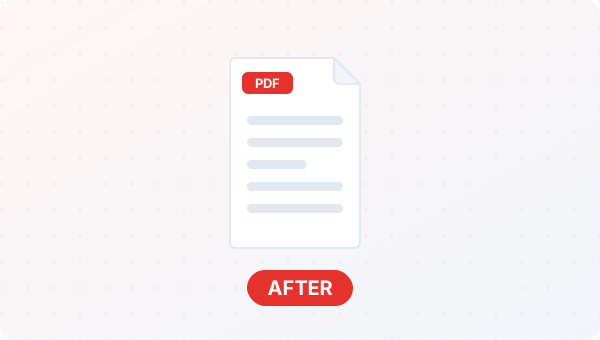
After (New result file)
- A new file downloads to your device
- Your original stays untouched
Conceptual illustration, not a screenshot.
Supported Input and Output
| Accepted input | One PDF (.pdf). | ||||||||||||||||||||||
| What it flattens | AcroForm fields (text boxes, checkboxes, drop-downs) are merged into the page so the values can no longer be edited. | ||||||||||||||||||||||
| Not flattened | Comments, highlights and other annotations. | ||||||||||||||||||||||
| Output | A PDF named flattened-| File handling | The processing code runs in your browser. The page loads the pdf-lib library from the unpkg CDN when it opens; the tool code does not send your PDF to a server. | Flatten PDF Features
Who Should Use Flatten PDF?
Use Cases and Output ChecksCommon uses
Check the output
Limitations and Troubleshooting
Common problems
Related Tools and GuidesQuick Summary
Share This ToolIf you found this tool useful, share it with friends and classmates: DisclaimerFlatten PDF is for personal and educational use. Check your local laws and your organisation's rules before you process copyrighted or sensitive documents. Results depend on your file and browser, so always check the output before you use it. FAQs – Flatten PDF1. Flatten PDF kaise use karein?Apni file select karein, settings check karein aur “Flatten PDF Document” button dabayein. Result neeche dikhega; phir Download par tap karein. 2. Kya Flatten PDF free hai?Haan, iLikePDF ka Flatten PDF tool bilkul free hai. Koi payment ya signup nahi chahiye. 3. Kya main mobile se Flatten PDF use kar sakta hoon?Haan, yeh tool mobile-friendly hai. Aap Android ya iPhone ke browser se bhi Flatten PDF use kar sakte hain. 4. Kya meri file upload hoti hai?Nahi. Yeh tool aapke browser me chalta hai; aapki file iLikePDF ke server par upload nahi hoti. (Kuch features ek helper library CDN se load karte hain, lekin aapki file unme nahi jaati.) 5. What does Flatten PDF do?Flatten PDF turns supported interactive elements into fixed page appearances. Use it when the required result matches this operation; keep a separate copy of the source. 6. How do I use Flatten PDF online?Select the filled PDF, run flattening and reopen the downloaded copy. Open the downloaded result before sending it to someone else. 7. Which source should I prepare for Flatten PDF?Prepare a completed form or annotated PDF, keeping an editable original. Start with a file that opens correctly in its usual viewer. A renamed extension does not convert the underlying format. 8. What should I check in the Flatten PDF output?Check that every entered value remains visible and that intended fields no longer accept ordinary edits. Keep the original until the result has passed these checks. 9. Is flattening the same as compression?No. Flattening changes interactive structure; compression targets file size. A flattened PDF is not necessarily smaller. 10. Does flattening securely redact hidden content?No. Flattening is not a substitute for verified redaction or metadata sanitization. Use the appropriate workflow for removing sensitive information. 11. Can a flattened PDF ever be edited again?Specialized editors may still alter visible content. Flattening reduces ordinary field interaction, not every possible form of editing. 12. Why did a form value disappear after flattening?Some fields lack a usable appearance or use unsupported form technology. Inspect the result and try exporting a reliable appearance from a compatible form viewer. 13. Should I flatten before filling the form?No. Complete and validate the form first. Keep an editable source so you can correct mistakes after creating the flattened copy. 14. Will all annotations be flattened?Only the annotation types supported by the implementation. Test comments, stamps, checkboxes and signatures that matter to the document. 15. Does flattening turn all text into an image?Not necessarily. Some methods merge appearances while preserving text objects; others rasterize content. Check selection, search and output quality. 16. Can flattening affect digital signatures?Yes, document modifications may affect validation. Preserve the signed original and follow the recipient’s required handling workflow. 17. Why might Flatten PDF fail on a large file?Unusual forms or annotation types may not be supported by the flattening engine. Close unnecessary tabs and test a smaller non-confidential sample to separate a file-specific problem from a browser problem. 18. When is Flatten PDF useful?Prepare a stable viewing copy of a completed form for an accepted submission workflow. Confirm the recipient’s requirements before preparing the final version. 19. What can I do after using Flatten PDF?Related next steps include Edit PDF, Sign PDF, Compress PDF. Choose one only when you need that additional operation. Review the a flattened PDF copy before applying another change, and retain your source copy. |