About Rearrange PDF
Reorder the pages of a PDF by drag and drop. One new PDF with pages in the order you arranged, named <original name>-reordered.pdf.
iLikePDF's Rearrange PDF tool lets you reorder the pages of a PDF by drag and drop – free and without any software. It is a good fit for put scanned pages back into the correct order, move a cover or summary page to the front and reorganize chapters before sharing a combined PDF. You may also know it as rearrange pdf pages online, free rearrange pdf pages.
Everything happens in your browser: your files are not uploaded to our servers. It is private by design, quick to use and mobile-friendly.
Full walkthrough: Rearrange PDF: Step-by-Step Guide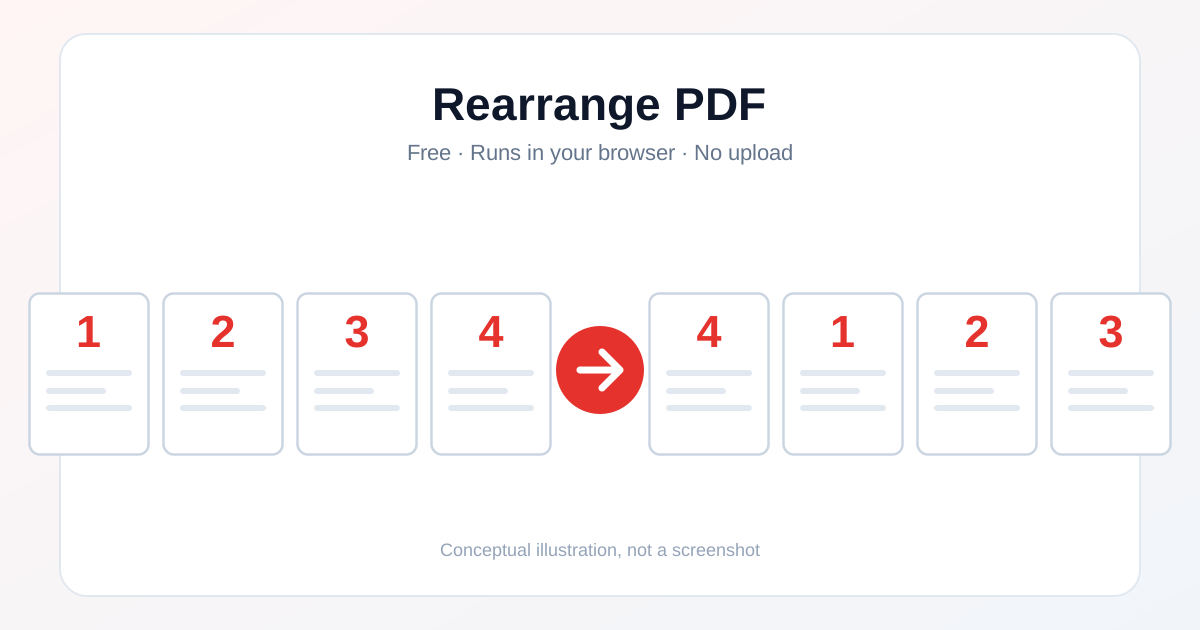
How to Use Rearrange PDF
- Open this tool and choose your file (or drag & drop it onto the upload box).
- Check any options shown on the page (page range, crop margins, insertion point, etc. where relevant).
- Click the main action button and wait for the short in-browser processing step.
- Open the file that downloads and check the result before you rely on it.
Before & After
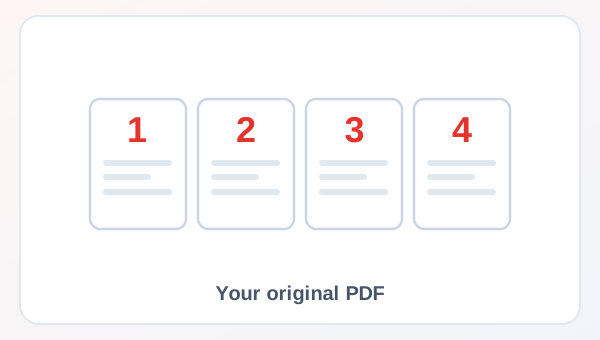
Before (Your original PDF)
- Files as you have them
- Nothing has been changed yet
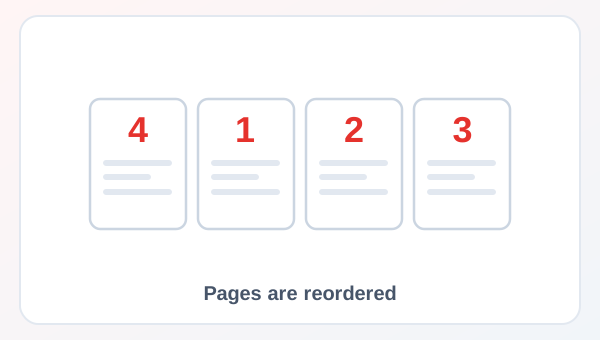
After (Pages are reordered)
- A new file downloads to your device
- Your original stays untouched
Conceptual illustration, not a screenshot.
Supported Input and Output
| Accepted input | One PDF (.pdf). |
| Output | One new PDF with pages in the order you arranged, named <original name>-reordered.pdf. |
| File handling | The processing code runs in your browser. The page loads helper libraries from the unpkg CDN when it opens; the tool code does not send your file to a server. |
Rearrange PDF Features
- ✅ 100% free – no payment, no sign-up, no watermark.
- ✅ No software – rearrange pdf pages online straight in your browser.
- ✅ Private by design – your file is processed on your device, not uploaded to our servers.
- ✅ Original kept – a new file is created.
- ✅ Works on mobile and desktop – Android, iPhone, Windows and Mac.
Who Should Use Rearrange PDF?
- Students – Move content between PDF, Word, Excel, PowerPoint and images for study work.
- Job Seekers – Prepare resumes, certificates and ID proofs in the format a form expects.
- Professionals – Prepare contracts, reports and invoices for sharing.
- Small Businesses – Send clean, correctly formatted documents to customers and suppliers.
- General Users – Keep personal papers tidy and easy to share.
Use Cases and Output Checks
Common uses
- Put scanned pages back into the correct order.
- Move a cover or summary page to the front.
- Reorganize chapters before sharing a combined PDF.
Check the output
- Output opens correctly and matches what you expected.
- File size and quality are acceptable for your use.
- No unrelated page or personal data slipped into the result.
Limitations and Troubleshooting
- Drag a page thumbnail to a new position — the position labels update live as you drag.
- Very large files can take longer to process since everything runs on your device.
- Keep a copy of your original file until you have checked the result.
Related Tools and Guides
Quick Summary
| Feature | Details |
|---|---|
| Tool name | Rearrange PDF |
| Cost | 100% free |
| Software required | No |
| File upload | No – processed in your browser |
| Supported devices | Mobile & desktop |
| Best for | Put scanned pages back into the correct order |
Share This Tool
If you found this tool useful, share it with friends and classmates:
Disclaimer
Rearrange PDF is for personal and educational use. Check your local laws and your organisation's rules before you process copyrighted or sensitive documents. Results depend on your file and browser, so always check the output before you use it.
FAQs – Rearrange PDF
1. Rearrange PDF kaise use karein?
Apni file select karein, zaroori options check karein aur convert/process button dabayein. Result neeche dikhega; phir Download par tap karein.
2. Kya Rearrange PDF free hai?
Haan, iLikePDF ka Rearrange PDF tool bilkul free hai. Koi payment ya signup nahi chahiye.
3. Kya main mobile se Rearrange PDF use kar sakta hoon?
Haan, yeh tool mobile-friendly hai. Aap Android ya iPhone ke browser se bhi is tool ko use kar sakte hain.
4. Kya meri file upload hoti hai?
Nahi. Yeh tool aapke browser me chalta hai; aapki file iLikePDF ke server par upload nahi hoti. (Kuch features ek helper library CDN se load karte hain, lekin aapki file unme nahi jaati.)
5. What does Rearrange PDF do?
Reorder the pages of a PDF by drag and drop. One new PDF with pages in the order you arranged, named <original name>-reordered.pdf.
6. What file should I prepare for Rearrange PDF?
One PDF (.pdf). Start with a file that opens correctly in its usual viewer before you convert it.
7. Is Rearrange PDF really processed without uploading my file?
Yes. The conversion code runs entirely in your browser tab using your device's own processing power. The page may load a helper library (such as pdf-lib, pdf.js or JSZip) from a CDN when it opens, but your selected file itself is never sent to a server.
8. What should I check in the output before I rely on it?
Open the downloaded file and check that it looks correct — page count, image quality, text accuracy or page order, depending on the tool — before you delete your original or share the result.
9. Any limitation I should know about?
Drag a page thumbnail to a new position — the position labels update live as you drag.
10. When is Rearrange PDF useful?
Put scanned pages back into the correct order. Confirm the recipient's requirements before you prepare the final version.