Flatten PDF: Step-by-Step Guide
To use Flatten PDF, open the tool, choose your file, and let it process in your browser — nothing is uploaded. Fix form-field values onto the page. The result downloads straight to your device, free and without sign-up.
Flatten PDF lets you rearrange, mark up or sign a PDF document directly in your browser, without installing desktop PDF software.
What Is Flatten PDF?
Flatten PDF lets you rearrange, mark up or sign a PDF document directly in your browser, without installing desktop PDF software.
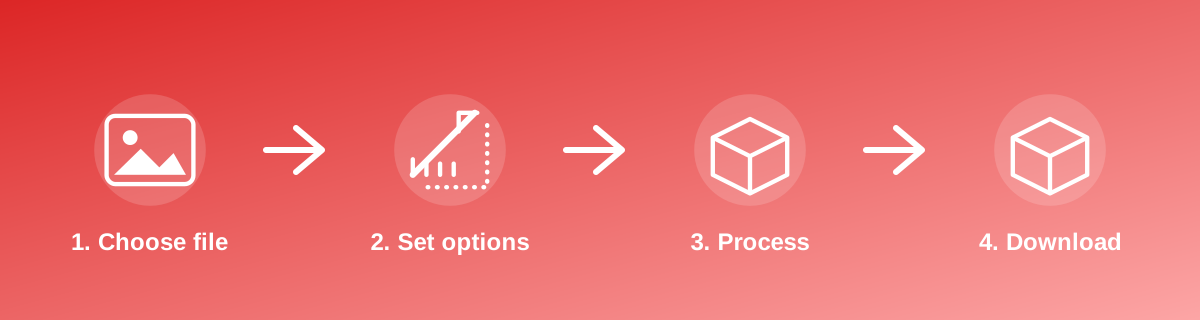
How to Use It — Step by Step
- Open Flatten PDF and select your PDF file.
- Make the required change using the tool's controls.
- Preview the result.
- Download the updated PDF.
Why Use This Tool?
- Handles common PDF tasks — combining, splitting, rotating, stamping or signing — without paid software.
- Processing happens in your browser tab, not on a remote server.
- No account needed and no page-count limit for personal use.
- Works from a phone or desktop browser alike.
Supported File Formats
Flatten PDF accepts: PDF. Always confirm the accepted formats on the tool page itself if you are working with an unusual file type.
Is It Safe and Private?
Flatten PDF runs its processing in your browser using your device's own resources. The tool code does not make an upload request for the file you select, so your file is not sent to a server for this task. Keep in mind that no tool can guarantee what happens after you download and share a file elsewhere — that depends on where you send it next.
Best Practices
- Always keep the original PDF before making changes, since some edits can't be undone once saved.
- Open the result afterwards to confirm the page order, content or signature placement is correct.
- For documents with existing digital signatures, check whether the intended edit will invalidate them.
- Use clear, short file names so combined or split documents stay organised.
Common Problems and Fixes
The output PDF looks different from expected Reopen it in a PDF viewer to confirm; some viewers render fonts or layouts slightly differently, which is usually cosmetic rather than a data problem.
A password-protected PDF won't open You'll need the correct password first; this tool works with PDFs you're authorised to open and edit.
The file is larger than before Some operations (like flattening or adding elements) can increase file size slightly; use a PDF compression tool afterwards if size matters.
Frequently Asked Questions
Yes, this tool is free with no daily limit and no watermark added to the result.
No sign-up is required. Open the tool page and use it directly.
No — the tool processes your file in your own browser, so it is not uploaded anywhere for this task.
Yes, the tool page is mobile-friendly and works in a phone browser as well as on a desktop.
No — the tool processes the file in your browser tab.
Basic operations like merging, splitting and rotating work regardless of whether pages are scanned images or native text; recognising text inside a scan needs a separate OCR tool.
Related Tools
Key Takeaways
- Flatten PDF runs in your browser — free, no sign-up, and your file is not uploaded for this task.
- Follow the four steps above and check the result before you rely on it for a form, portal or upload.
- Keep your original file, since results from lossy or destructive edits cannot always be undone.
Reviewed and updated 25 September 2026 by the iLikePDF Editorial team. This guide describes how the Flatten PDF tool on iLikePDF works; always verify results against the specific requirements of the form, portal or platform you are submitting to.