Remove PDF Annotations: Step-by-Step Guide
To use Remove PDF Annotations, open the Remove PDF Annotations tool, choose your file, click the main button and download the result. Remove comments, highlights and stamps from a PDF. It is free and runs in your browser.
Remove PDF Annotations lets you remove comments, highlights and stamps from a PDF. This guide explains each step, what to check and how to fix common problems.
What Is Remove PDF Annotations?
A PDF can carry comments, highlights, sticky notes and stamps that you may not want to send on. This tool removes those annotation objects from every page and saves a clean copy.
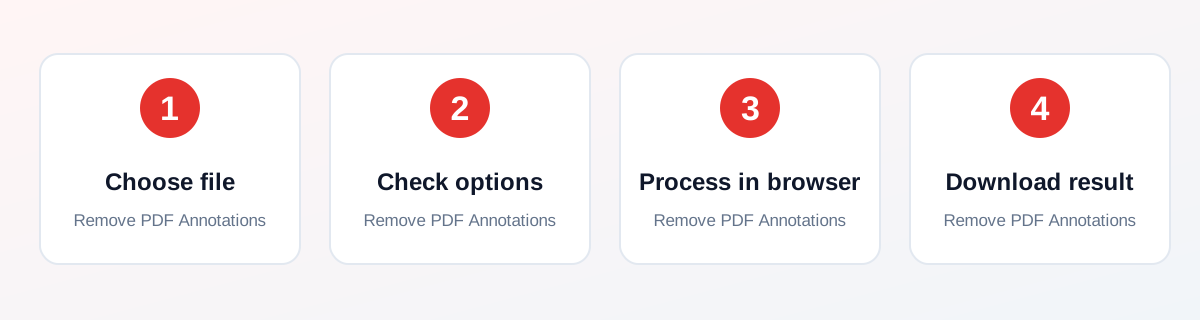
How to Use It — Step by Step
- Open this tool and choose your PDF (or drag and drop it onto the upload box).
- Choose whether links should stay clickable. Form fields are always kept.
- Click Remove Annotations and wait for the short in-browser step.
- Open the new PDF and check that the comments and highlights are gone.
Why Use This Tool?
- Send a clean copy of a reviewed document.
- Remove sticky notes before you share a contract.
- Clear highlights from a study PDF to reuse it.
- No sign-up, no watermark and no payment.
- Processing happens in your browser, not on a server.
Supported File Formats
Remove PDF Annotations accepts: One PDF (.pdf). Output: One PDF named clean-<your file name>.pdf with the annotations removed.
Is It Safe and Private?
The processing code runs in your browser. The file is not sent to our servers. You can keep your original file, because the tool saves a new one.
Best Practices
- Keep a copy of your original file until you have checked the result.
- Check the output carefully before you share it.
- Test with a smaller, non-confidential file first if you are unsure.
Common Problems and Fixes
Text that was added with a Text Box or Stamp may be saved as an annotation and is removed too.
Marks that were flattened into the page content cannot be removed. Use the original file instead.
Password-protected PDFs may not open. Unlock them first with Unlock PDF.
Nothing downloads after clicking the button Check that your browser is not blocking downloads or pop-ups, then try again.
Frequently Asked Questions
Yes. Remove PDF Annotations is completely free, with no daily limit, no watermark and no account needed.
No. Open the Remove PDF Annotations tool page in your browser, choose your file and run it. There is nothing to install.
No. The processing runs in your own browser, so your file stays on your device.
Yes. It works in the browser on Android, iPhone, Windows and Mac.
It deletes comments, highlights, notes, stamps and drawn marks from every page and saves a new PDF.
No. Form fields are kept, so a fillable form still works.
Yes. Keep the option 'Keep clickable links' ticked and the links stay.
Yes. It runs in your browser, so your PDF stays on your device.
Marks that were flattened into the page are part of the page content, not annotations. Use the original file or an earlier version.
No. Only annotation objects are removed. The page text and images are not changed.
Related Tools
See all 232 tools, the guide library or the tool page: Remove PDF Annotations.