TIFF to PDF: Step-by-Step Guide
To use TIFF to PDF, open the TIFF to PDF tool, choose your file, and it processes and saves the result right in your browser — nothing is uploaded. It's free, needs no sign-up, and works on both desktop and mobile.
TIFF to PDF lets you convert TIFF images into a PDF — useful for turn scanned TIFF documents into a shareable PDF and similar everyday document tasks, without installing any software.
What Is TIFF to PDF?
TIFF to PDF is iLikePDF's free, browser-based tool to convert TIFF images into a PDF. It runs entirely on your device using your browser's own processing power, so there is no waiting on a server and no file leaves your device for this task.
How to Use It — Step by Step
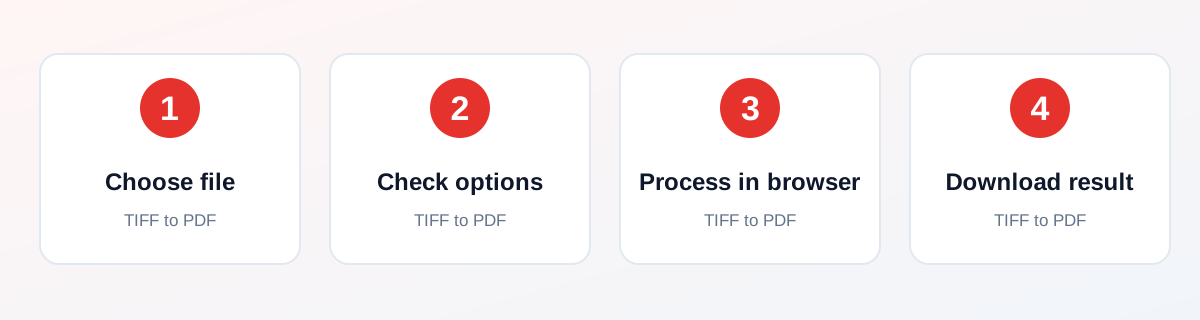
- Open the TIFF to PDF tool and choose your file (or drag & drop it onto the upload box).
- Check any on-page options relevant to this tool.
- Click the main action button and let it process in your browser.
- Download the finished file to your device and open it to check the result.
Why Use This Tool?
- Convert TIFF images into a PDF without installing any software.
- No need to sign up or pay to use it.
- Processing happens locally in your browser, not on a remote server.
- Free to use as many times as you need, with no watermark.
Supported File Formats
TIFF to PDF accepts: One or more TIFF images.
Is It Safe and Private?
TIFF to PDF runs its processing in your browser using your device's own resources. The tool code does not make an upload request for the file you select, so your file is not sent to a server for this task. Keep in mind that no tool can guarantee what happens after you download and share the resulting file elsewhere — that depends on where you send it next.
Best Practices
- Keep a copy of your original file until you have checked the converted result.
- Check the output carefully — page count, image quality, text accuracy or page order, depending on the tool.
- Test with a smaller, non-confidential file first if your real file is very large or sensitive.
- TIFF decoding uses the UTIF.js library; most common uncompressed and LZW-compressed single-page TIFFs are supported, but unusual or multi-page TIFF variants may not decode correctly.
Common Problems and Fixes
The tool seems stuck or slow Large files take longer to process because everything runs on your own device. Close other heavy browser tabs and wait — avoid refreshing mid-process.
The output doesn't look right TIFF decoding uses the UTIF.js library; most common uncompressed and LZW-compressed single-page TIFFs are supported, but unusual or multi-page TIFF variants may not decode correctly. Try a smaller or simpler test file to check whether the issue is specific to your file.
Nothing downloads after clicking the button Check that your browser isn't blocking pop-ups or automatic downloads for this site, then try again.
Frequently Asked Questions
Yes — TIFF to PDF is completely free, with no daily limit, no watermark, and no account needed.
No. Open the TIFF to PDF tool page in your browser, choose your file, and run the conversion directly — nothing to install, no sign-up.
No. The conversion runs entirely in your own browser, so your file is never uploaded anywhere for this task. The page may load a small helper library from a CDN when it opens, but that is separate from your file.
One or more TIFF images.
One PDF named images-compiled.pdf with one image per page.
Yes, the tool page is mobile-friendly and the conversion works in a mobile browser as well as on desktop.
Open the downloaded file and check page count, text accuracy, image quality or page order (whichever applies) before you delete the original or send the result onward.
TIFF decoding uses the UTIF.js library; most common uncompressed and LZW-compressed single-page TIFFs are supported, but unusual or multi-page TIFF variants may not decode correctly.
Yes, but very large files take longer because everything processes on your own device rather than a server. Close other heavy browser tabs if a large file is slow.
It aims for the same everyday result but runs instantly in your browser with no install. For specialised or highly complex files, dedicated desktop software may offer more advanced options.
Related Tools
Key Takeaways
- TIFF to PDF runs in your browser — free, no sign-up, and your file is not uploaded for this task.
- Follow the steps above and check the result before you rely on it for a form, portal or upload.
- TIFF decoding uses the UTIF.js library; most common uncompressed and LZW-compressed single-page TIFFs are supported, but unusual or multi-page TIFF variants may not decode correctly.
Reviewed and updated 02 October 2026 by the iLikePDF Editorial team. This guide describes how the TIFF to PDF tool on iLikePDF works; always verify results against the specific requirements of the form, portal or platform you are submitting to.