HTML to PDF: Step-by-Step Guide
To convert HTML to PDF, open the HTML to PDF tool, choose your .html file, and it renders and saves as a PDF right in your browser — nothing is uploaded. It's free, needs no sign-up, and works on both desktop and mobile.
HTML to PDF turns a web page or HTML document into a fixed, shareable PDF file — useful for saving reports, invoices, certificates, saved articles or any HTML page as a portable, print-ready document that looks the same everywhere it's opened.
What Is HTML to PDF?
HTML to PDF is the process of rendering an HTML file — its text, layout, inline styles and images — into a static PDF document. Unlike copying and pasting text, this keeps your formatting, tables, headings and images intact, so the PDF looks like the original page. iLikePDF's HTML to PDF tool does this conversion entirely inside your browser using your device's own resources, so there's no waiting on a server and no file leaves your device for the task.
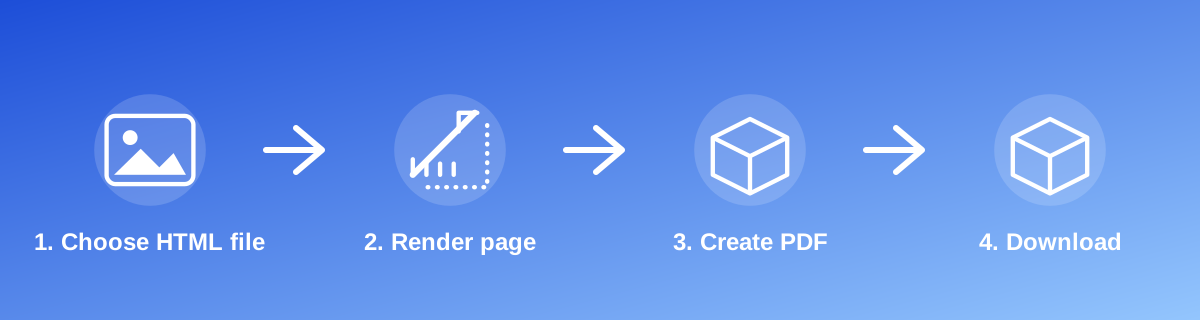
How to Use It — Step by Step
- Open the HTML to PDF tool and select your .html or .htm file.
- The tool renders the page's layout and styling in your browser.
- It builds a print-ready PDF from that rendered page.
- Download the finished PDF to your device.
Why Use This Tool?
- Turns any self-contained HTML page into a portable, shareable PDF.
- No need to install design or conversion software.
- Processing happens locally in your browser, not on a remote server.
- Free to convert as many HTML files as you need, with no watermark.
- Keeps inline CSS styling, tables and images from the source file.
Supported File Formats
HTML to PDF accepts: .html, .htm. If you have a live webpage rather than a saved file, use your browser's "Save Page As → Webpage, HTML only" option first, then upload that saved file here.
Is It Safe and Private?
HTML to PDF runs its rendering and conversion in your browser using your device's own resources. The tool code does not make an upload request for the file you select, so your file is not sent to a server for this task. Keep in mind that no tool can guarantee what happens after you download and share the resulting PDF elsewhere — that depends on where you send it next.
Best Practices
- Keep your CSS inline (inside a <style> tag in the same file) rather than linked externally, since external stylesheets may not load during offline conversion.
- Check tables, page breaks and image placement in the converted PDF before treating it as final.
- Avoid relying on JavaScript to build page content — the tool converts what's already present in the HTML.
- Use images that are embedded or reliably reachable, since external image URLs may not always load during conversion.
Common Problems and Fixes
The PDF looks different from the live webpage Complex CSS frameworks, external stylesheets and JavaScript-rendered content don't always convert exactly the same; keep styling simple and inline for the most reliable result.
The PDF came out blank or partly empty This usually means the page relied on JavaScript to insert its content after loading, or referenced external files the browser couldn't fetch offline; use a self-contained HTML file with inline styles instead.
Images are missing in the output Images loaded from external URLs may not be reachable during local, offline conversion; embed images directly in the HTML (for example, as base64 data) for guaranteed results.
Frequently Asked Questions
Yes — HTML to PDF is completely free, with no daily limit, no watermark, and no account needed.
No. Open the tool page in your browser, choose your HTML file, and convert it directly — nothing to install, no sign-up.
No. The conversion runs entirely in your own browser using html2pdf.js, so your file is never uploaded anywhere for this task.
It renders the HTML file you choose, including its inline and embedded CSS, so styled pages, tables and images generally convert well. Very complex layouts (heavy JavaScript-driven content, external stylesheets not linked inside the file) may not render exactly as in a live browser tab.
It accepts .html and .htm files. If you have a live webpage instead of a file, save the page as "Webpage, HTML only" from your browser first, then upload that file.
Inline <style> blocks inside your HTML file are read and applied. External stylesheets, external fonts and images that need an internet request may not load, since the conversion happens offline in your browser without fetching outside resources. For best results, keep your styling inside the file.
Yes, the tool page is mobile-friendly and the conversion works in a mobile browser as well as on desktop.
This usually means the HTML file relied on JavaScript to build its content, or referenced external files (like a separate .css or images from a URL) that couldn't be loaded during conversion. Try using a self-contained HTML file with inline styles for the most reliable result.
The tool converts to standard A4 with a small margin by default. For different needs, keep your source HTML's own width and styling close to what you want the final PDF to look like.
It's similar in spirit — both render HTML visually and produce a PDF — but this tool works entirely client-side on the file you upload, without opening the page in a live browser tab or requiring you to use your browser's print dialog.
Related Tools
Related Guides
Key Takeaways
- HTML to PDF runs in your browser — free, no sign-up, and your file is not uploaded for this task.
- Follow the four steps above and check the result before you rely on it for a form, portal or upload.
- Keep your HTML's CSS inline and avoid JavaScript-built content for the most reliable conversion.
Reviewed and updated 29 September 2026 by the iLikePDF Editorial team. This guide describes how the HTML to PDF tool on iLikePDF works; always verify results against the specific requirements of the form, portal or platform you are submitting to.