Unlock PDF: Step-by-Step Guide
To use Unlock PDF, open the tool, choose your file, and let it process in your browser — nothing is uploaded. Re-save a PDF you are allowed to open. The result downloads straight to your device, free and without sign-up.
Unlock PDF adds or removes password protection on a PDF you're authorised to access, processed in your browser rather than on a remote server.
What Is Unlock PDF?
Unlock PDF adds or removes password protection on a PDF you're authorised to access, processed in your browser rather than on a remote server.
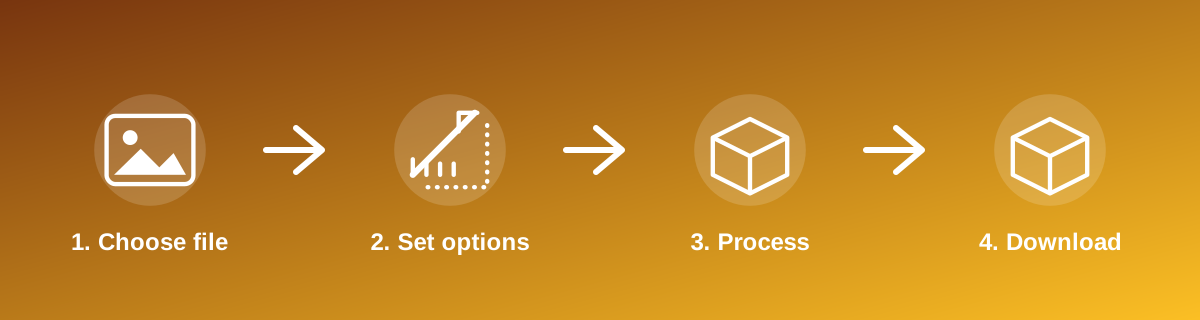
How to Use It — Step by Step
- Open Unlock PDF and select your PDF file.
- Enter the password to add or remove, as required.
- Process the file in your browser.
- Download and test the result by reopening it.
Why Use This Tool?
- Restricts access to a sensitive document with a password before sharing it.
- Removes a password from a PDF you have the legitimate right to open and modify.
- Keeps the file — and the password you enter — off any external server.
- No sign-up required to use it.
Supported File Formats
Unlock PDF accepts: PDF. Always confirm the accepted formats on the tool page itself if you are working with an unusual file type.
Is It Safe and Private?
Unlock PDF runs its processing in your browser using your device's own resources. The tool code does not make an upload request for the file you select, so your file is not sent to a server for this task. Keep in mind that no tool can guarantee what happens after you download and share a file elsewhere — that depends on where you send it next.
Best Practices
- Use a password you'll remember or store securely — a lost password on a protected PDF may not be recoverable.
- Confirm the protected file actually asks for the password when reopened before sharing it.
- Only remove protection from documents you're authorised to access and modify.
- Keep an unprotected backup somewhere secure if you plan to share the protected copy widely.
Common Problems and Fixes
The PDF still opens without a password Reopen the downloaded file directly (not a cached copy) to confirm the protection was actually applied.
I don't know the current password This tool cannot recover or guess an unknown password; you need the correct password to remove protection legitimately.
The protected file won't open in another app Some older PDF readers support fewer encryption methods; try a current, up-to-date PDF viewer.
Frequently Asked Questions
Yes, this tool is free with no daily limit and no watermark added to the result.
No sign-up is required. Open the tool page and use it directly.
No — the tool processes your file in your own browser, so it is not uploaded anywhere for this task.
Yes, the tool page is mobile-friendly and works in a phone browser as well as on a desktop.
No — the password is used locally in your browser to process the file; it is not transmitted to a server.
No — you need to know the correct existing password to remove protection through this tool.
Related Tools
Key Takeaways
- Unlock PDF runs in your browser — free, no sign-up, and your file is not uploaded for this task.
- Follow the four steps above and check the result before you rely on it for a form, portal or upload.
- Keep your original file, since results from lossy or destructive edits cannot always be undone.
Reviewed and updated 25 September 2026 by the iLikePDF Editorial team. This guide describes how the Unlock PDF tool on iLikePDF works; always verify results against the specific requirements of the form, portal or platform you are submitting to.